- A link in your DMs
- Nothing to do
1
Open the link
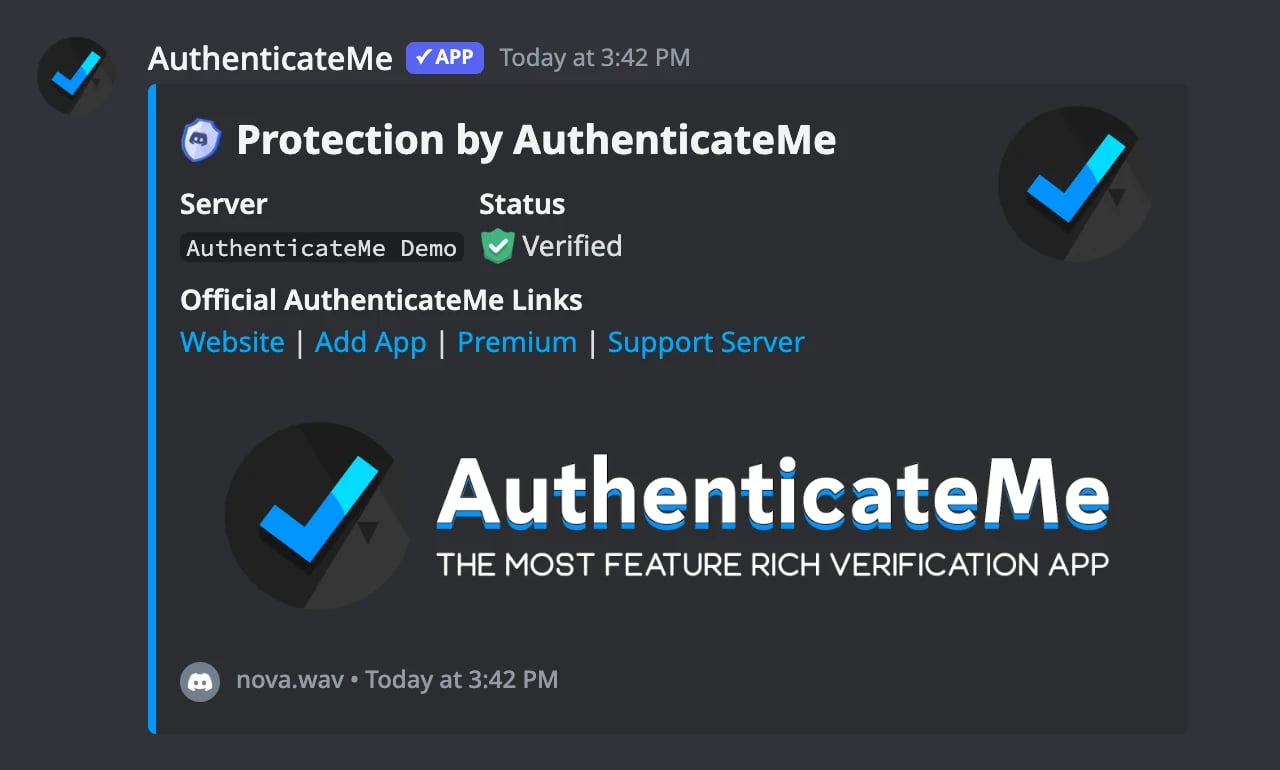
AuthenticateMe sends you a DM when you join, with Click here to verify! in it. No DM? Find the server’s verification channel and click Verify to get the link privately.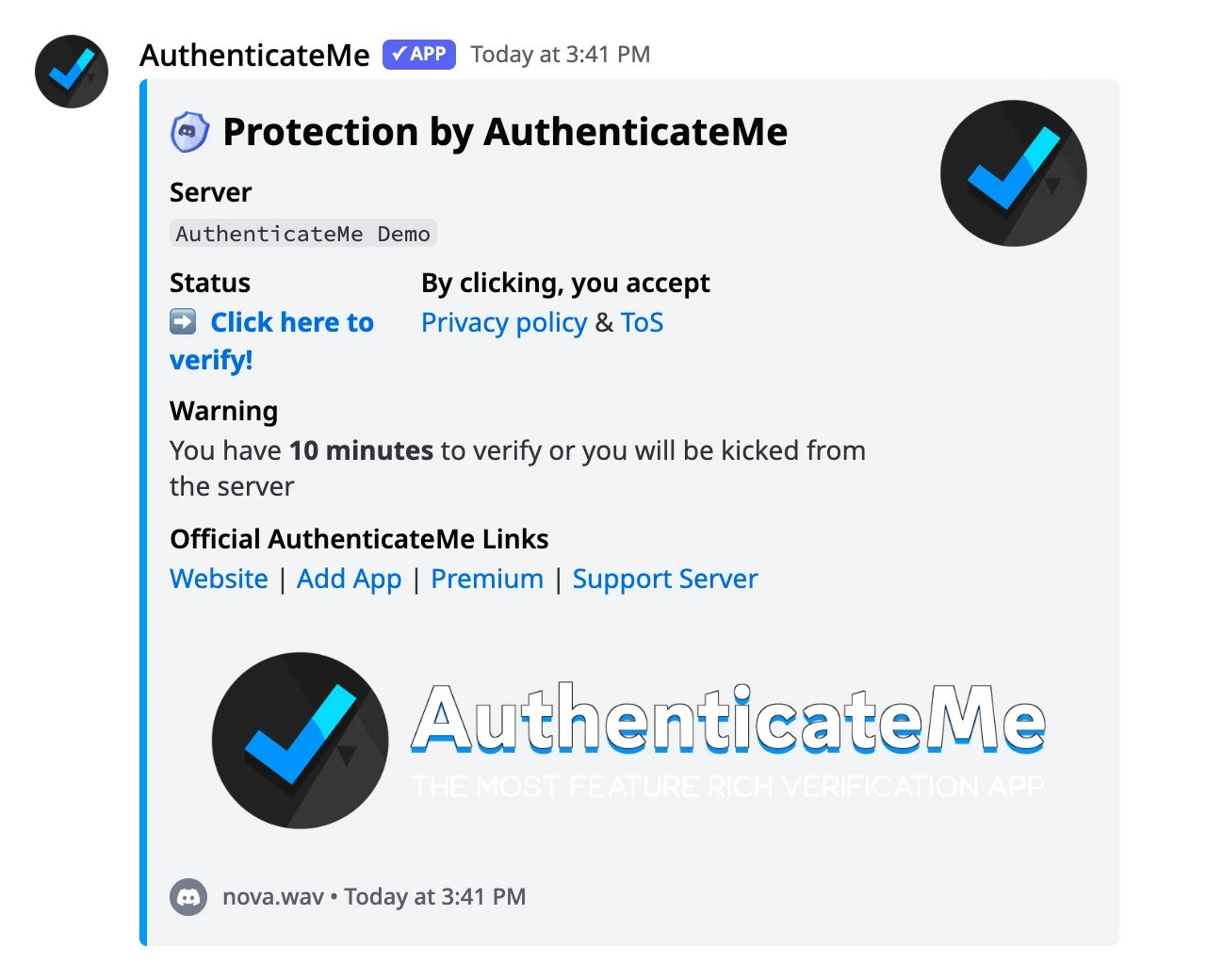
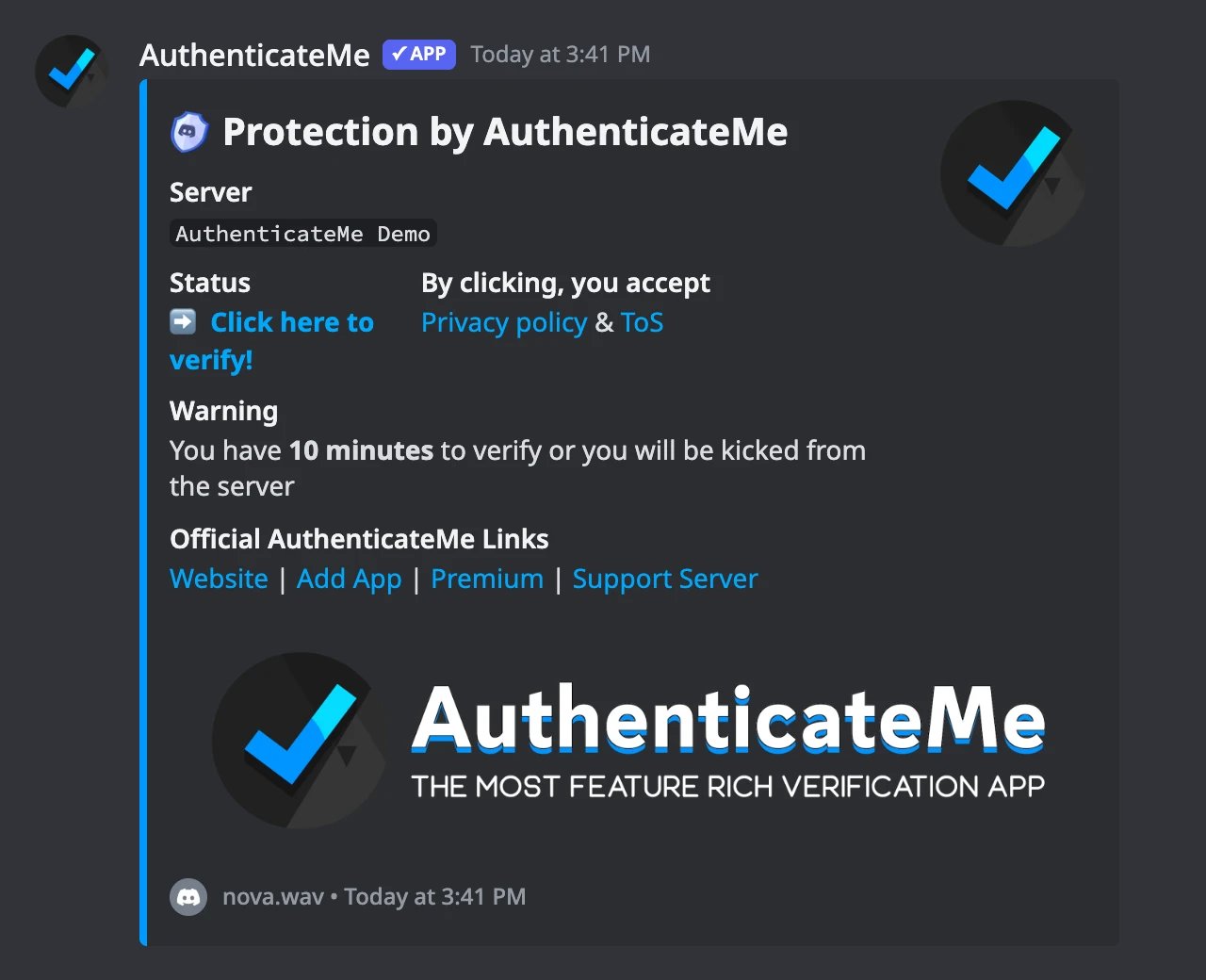
2
Sign in with Discord
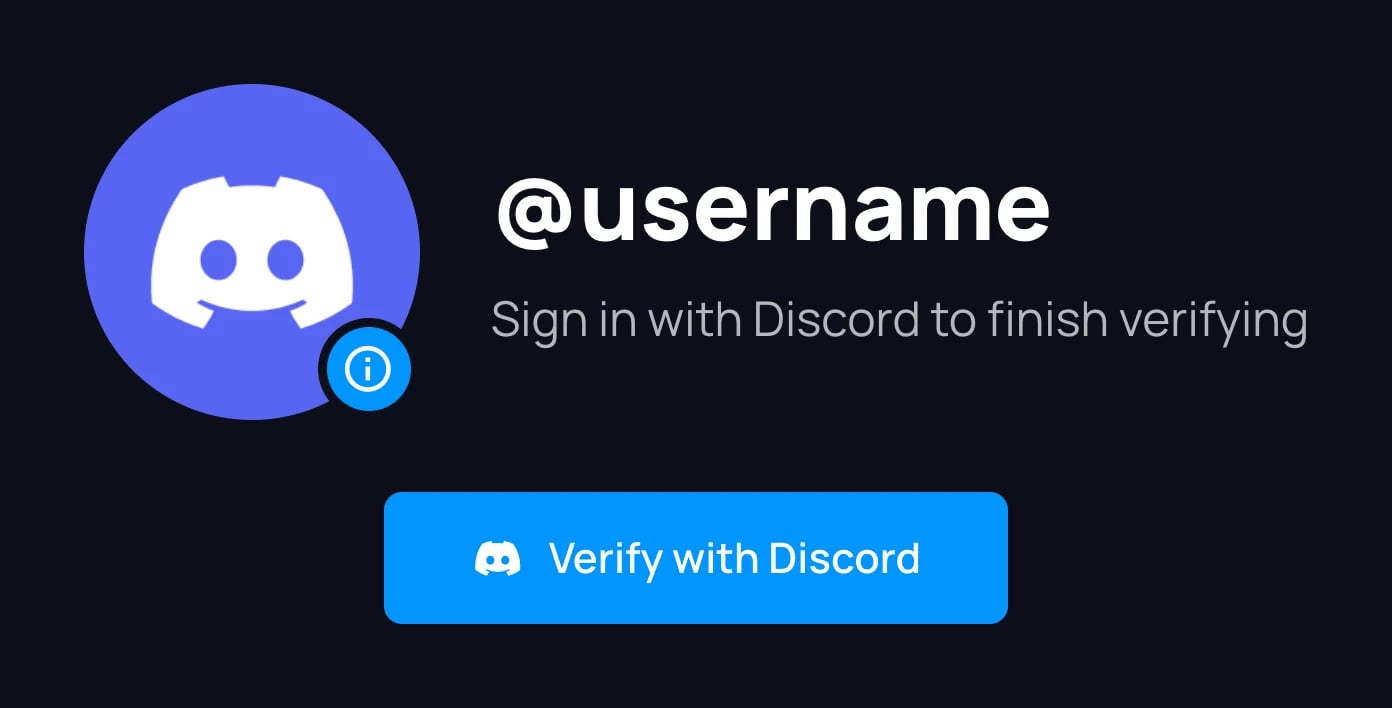
The link opens a page on authenticateme.xyz. Click Verify with Discord, and Discord asks you to authorize AuthenticateMe. On some servers the link skips this page and takes you straight to Discord. It only asks for your username, avatar, and email address. Check that the account shown is the one you joined the server with, and use Not you? if it isn’t.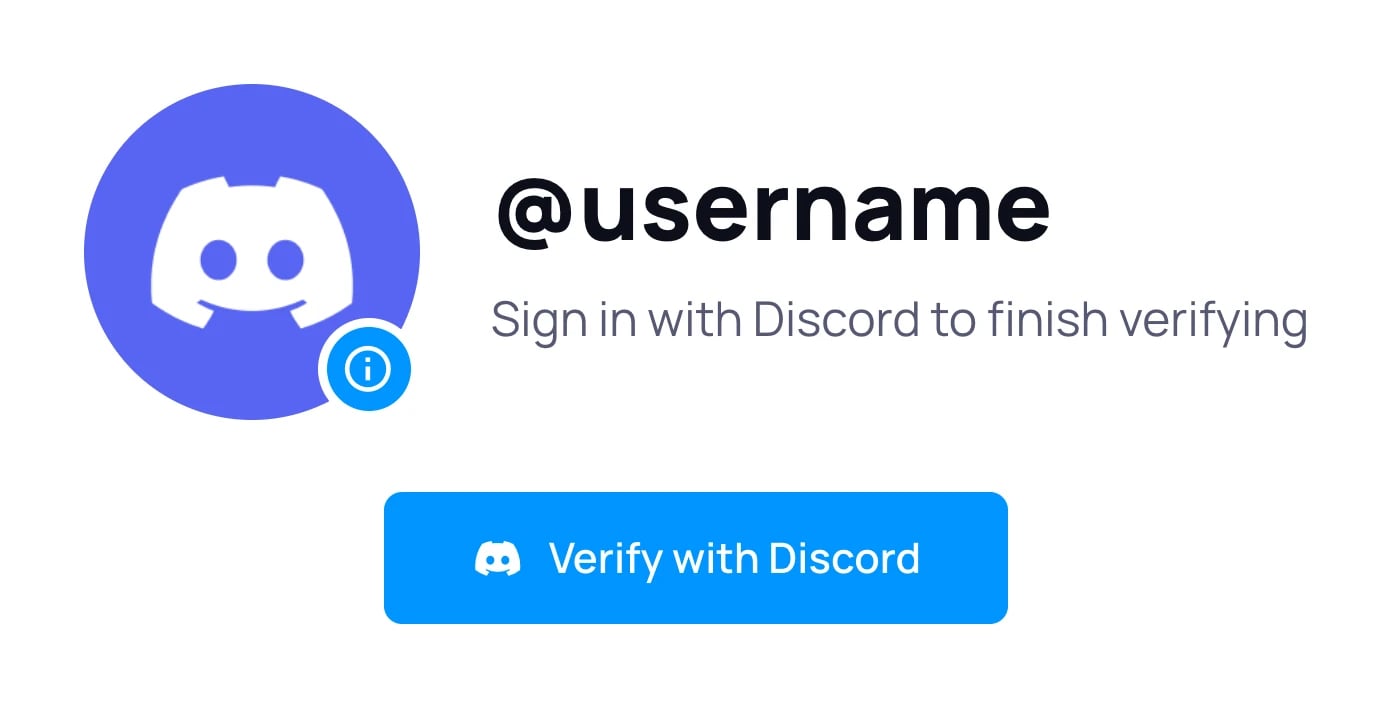
3
Wait for the result
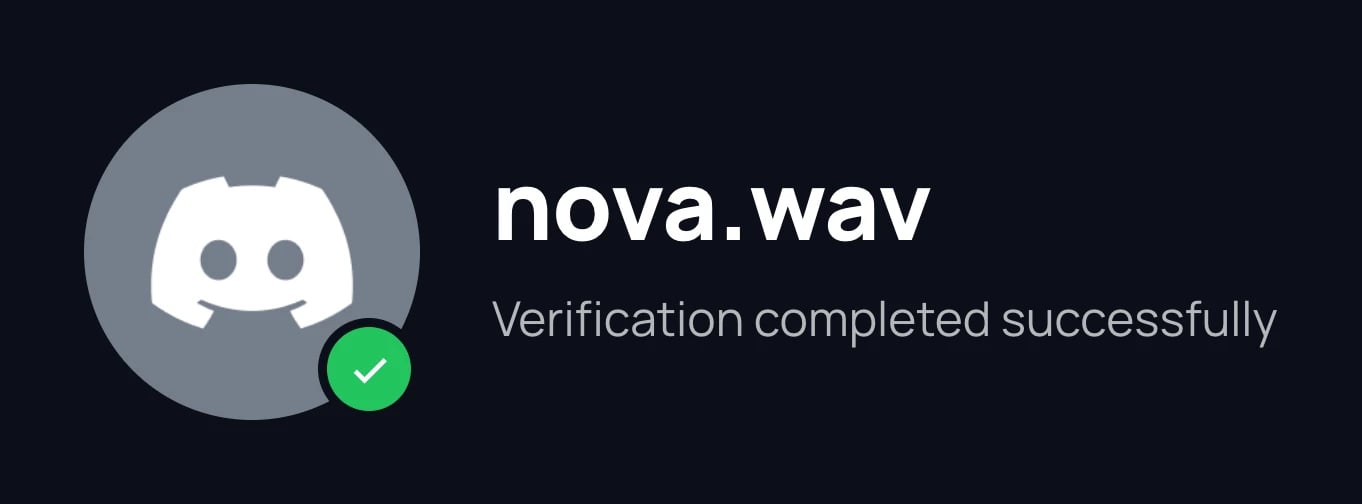
Your browser and connection are checked, which takes a few seconds. Keep the tab open until you see the result.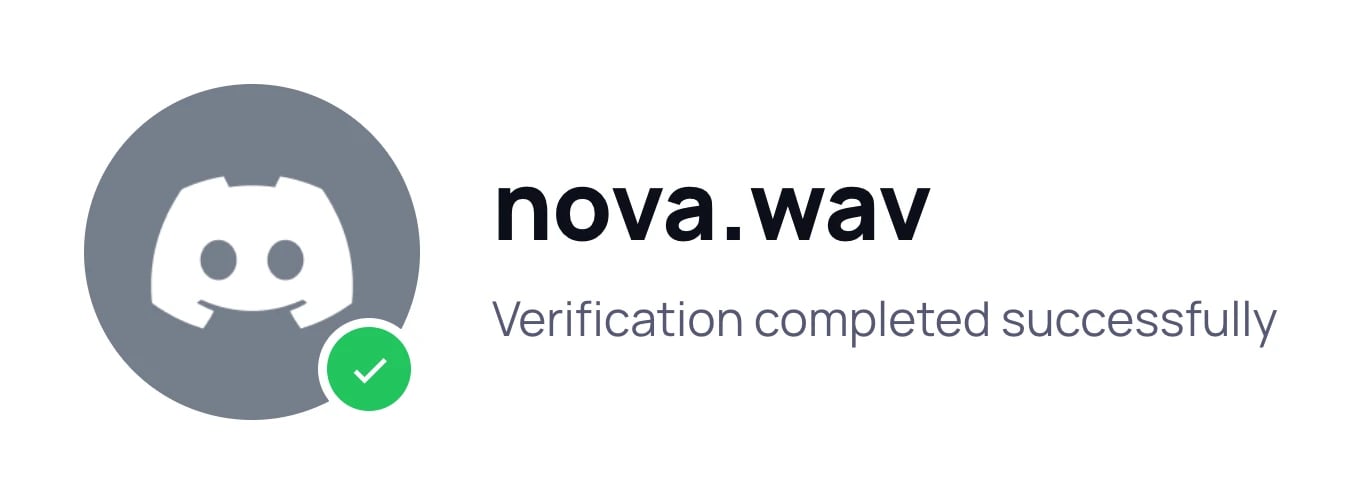
4
Head back to Discord
You get the server’s Verified Role and a confirmation DM, and the rest of the server opens up.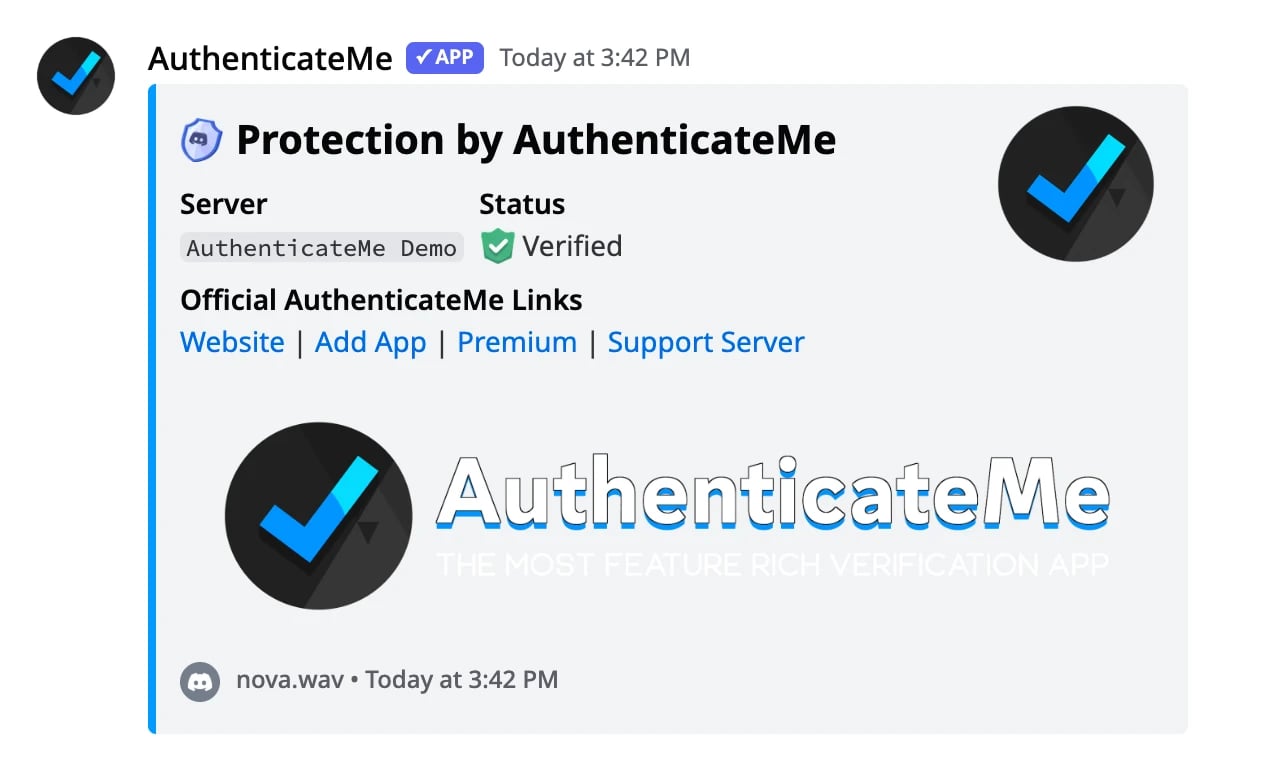
Before you start
Verify from your own home Wi-Fi in a normal browser such as Chrome, Edge, Safari, or Firefox, with the default settings.
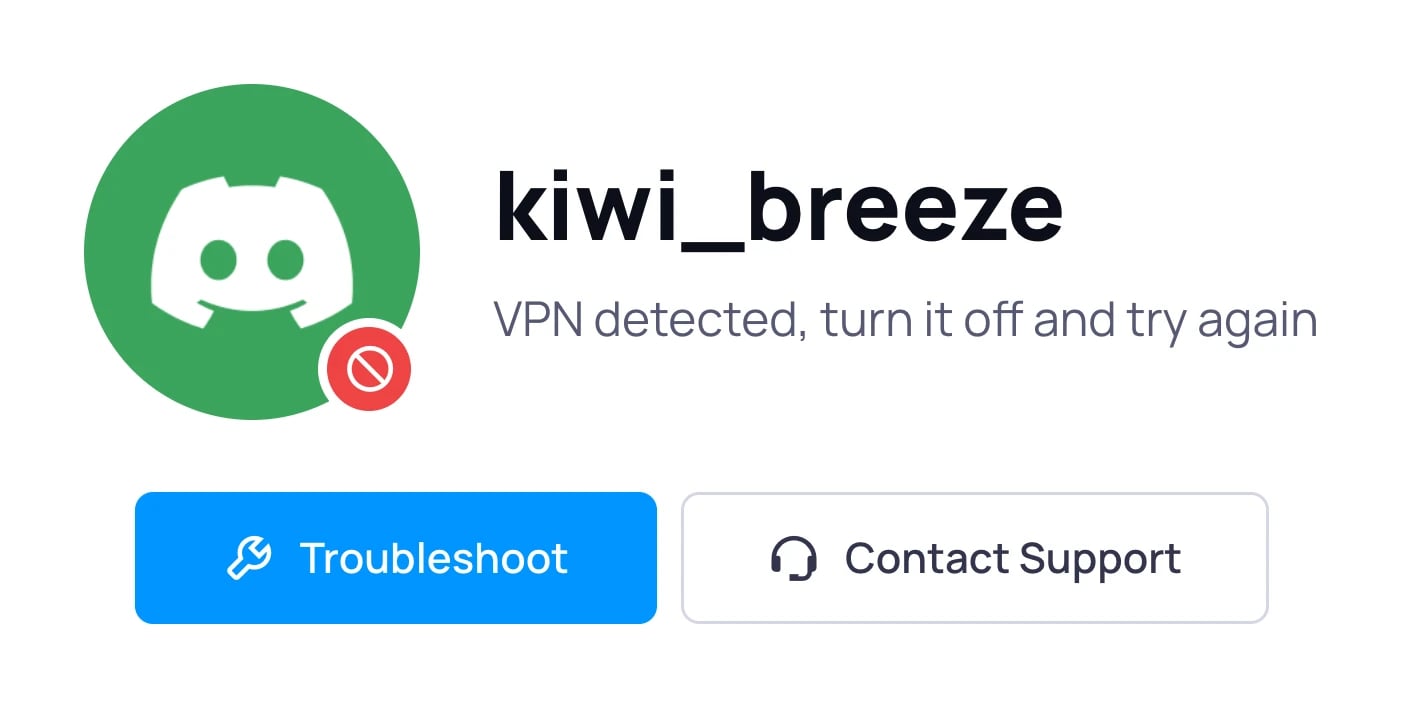
- Turn off any VPN or proxy, including iCloud Private Relay on Apple devices. You can turn it back on afterwards.
- Avoid school, work, café, or other shared networks if you can.
- Don’t use incognito or private browsing.
- On servers without Premium, the page shows ads. Turn off your ad blocker for authenticateme.xyz, or the page can’t finish.
Stay safe
If something goes wrong
If you see a red message instead of a green one, the page shows a Troubleshoot button for most problems. You can also look up the message in Verification errors.