The dashboard is where you configure AuthenticateMe and watch how verification is going. It works on desktop and mobile.

Sign in

Open the dashboard and sign in with Discord. AuthenticateMe asks to see your username, your servers, and to update command permissions, which the Permissions page uses to save command settings to Discord. Your servers appear in the rail on the left. A server shows up when you can open at least one dashboard page there, which by default means you have Manage Server. Servers without the app are greyed out with a + badge, and clicking one invites AuthenticateMe.

Find your way around

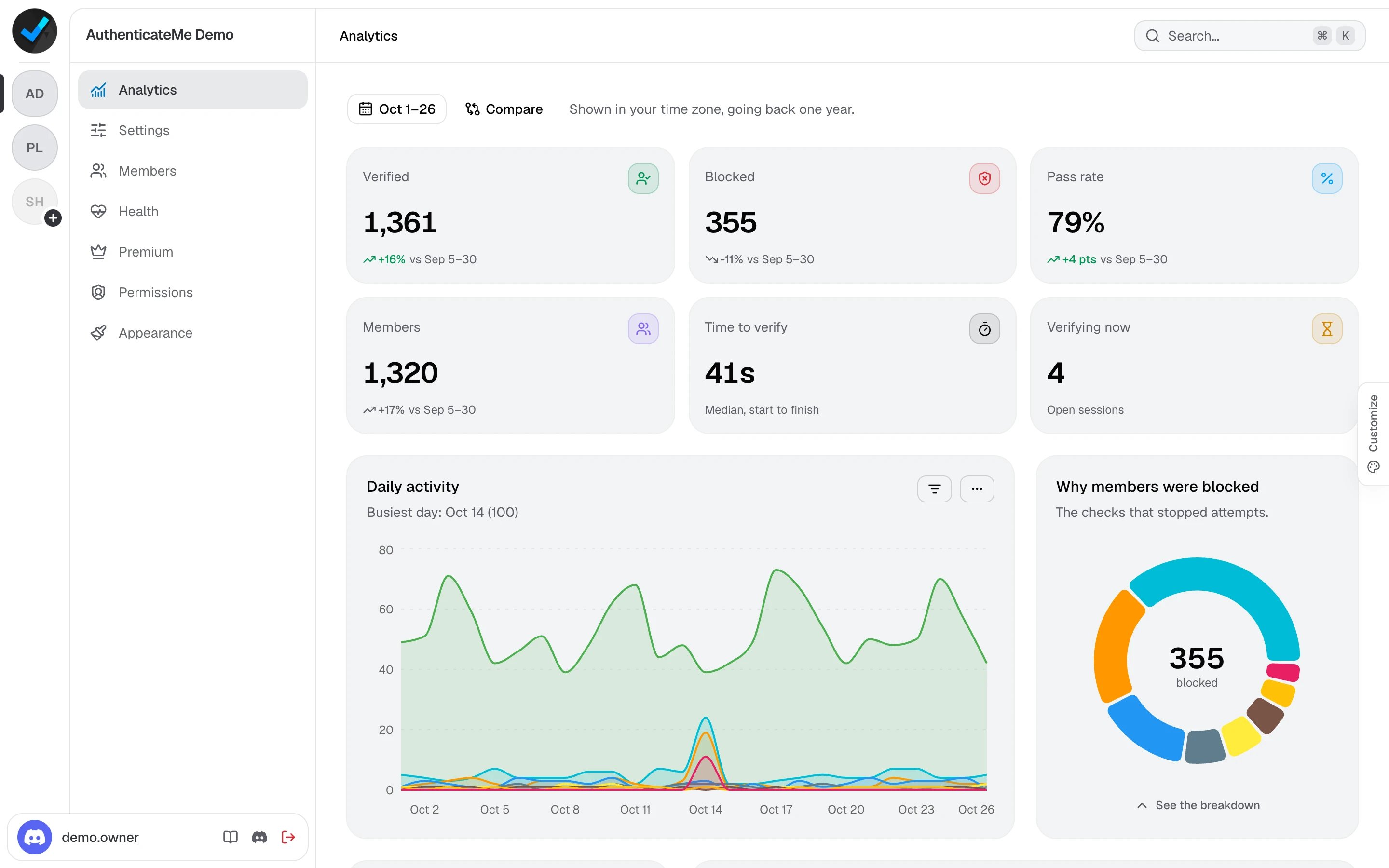
The dashboard with the server rail, the page list, and the Analytics page openThe dashboard with the server rail, the page list, and the Analytics page open
A lock next to a page means you don’t have access to it. An amber dot means unsaved changes, and a red dot on Health means something needs fixing. The buttons at the bottom of the page list open this documentation and the support server, and sign you out. Press Ctrl K (⌘ K on Mac), or click Search at the top, to jump anywhere. Search finds pages, servers, settings, and permissions. Picking a setting takes you to its card and highlights it.
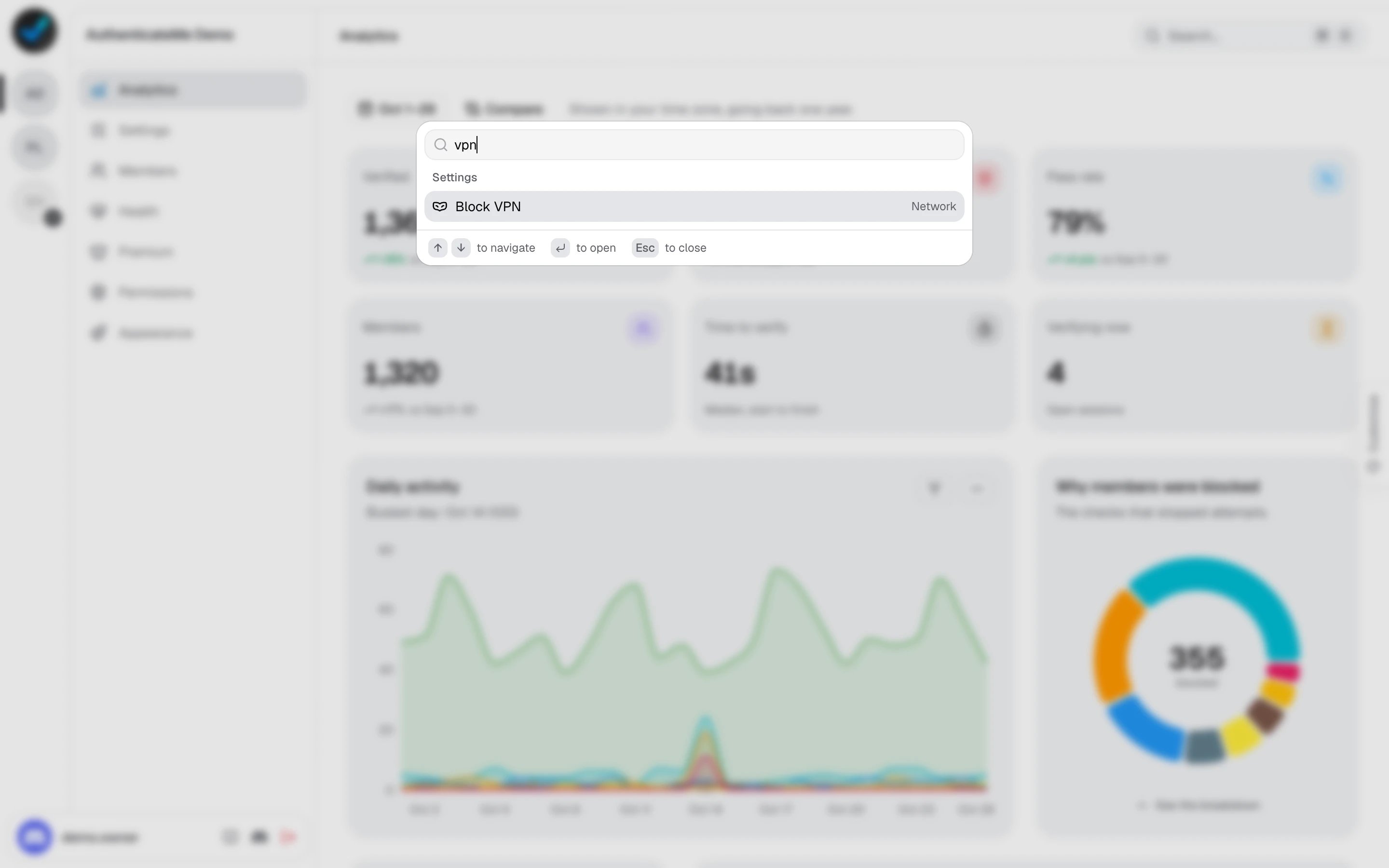
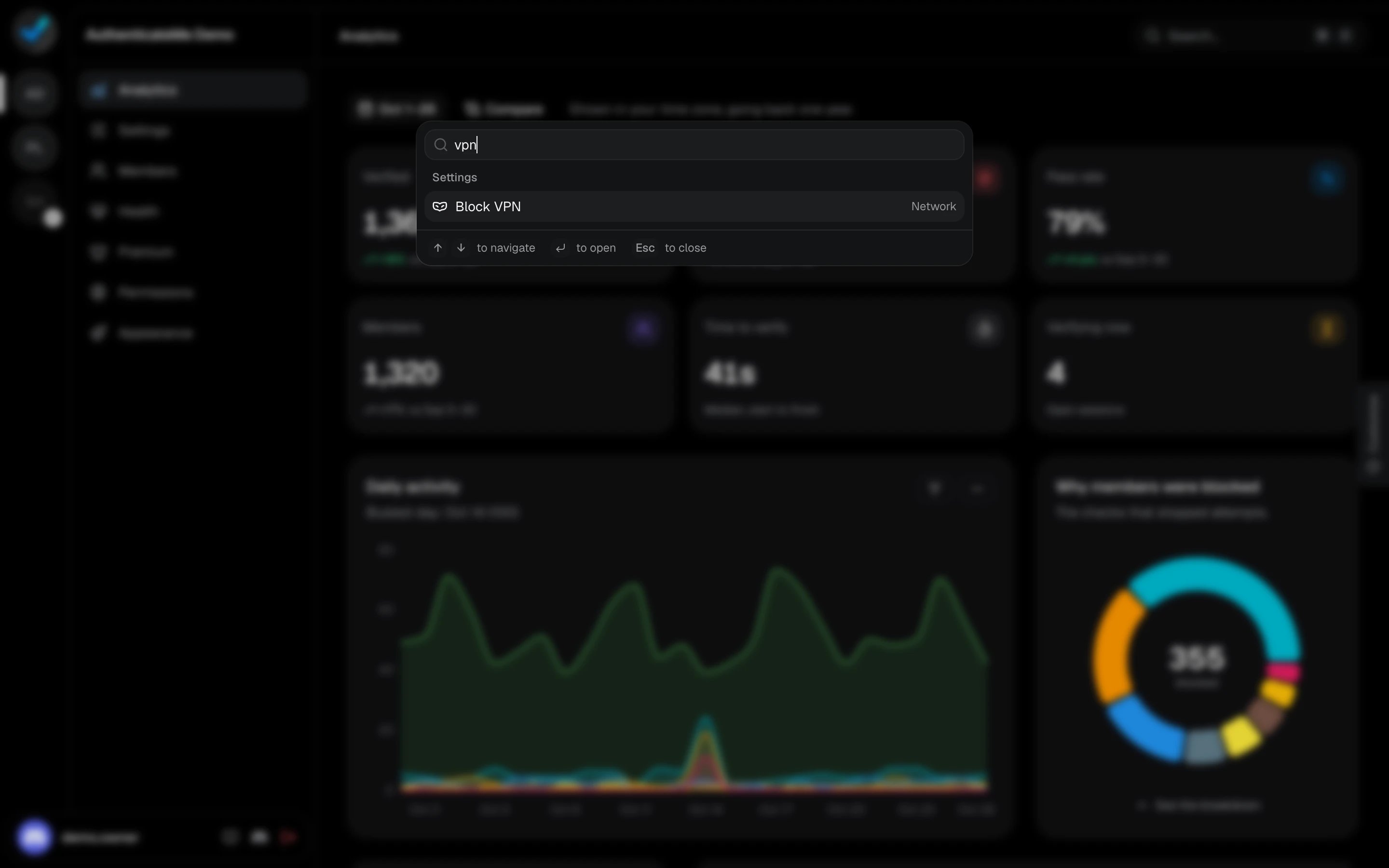
The search window showing results for "vpn"The search window showing results for "vpn"

Customize the look

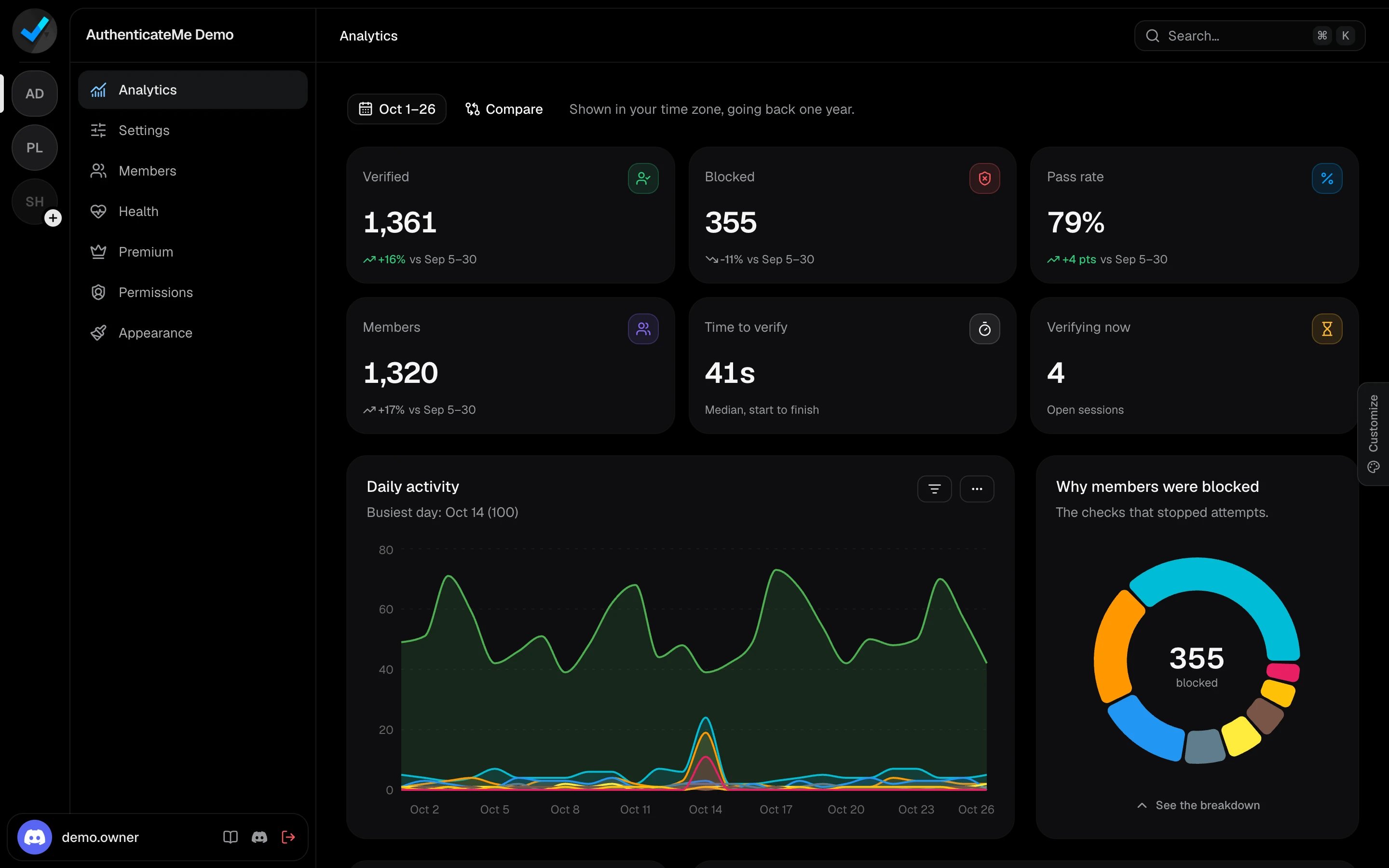
Click the Customize tab on the right edge of the screen. Pick a Dark, Gray, or Light theme and an accent color, or enter your own. Your choice is saved in your browser.
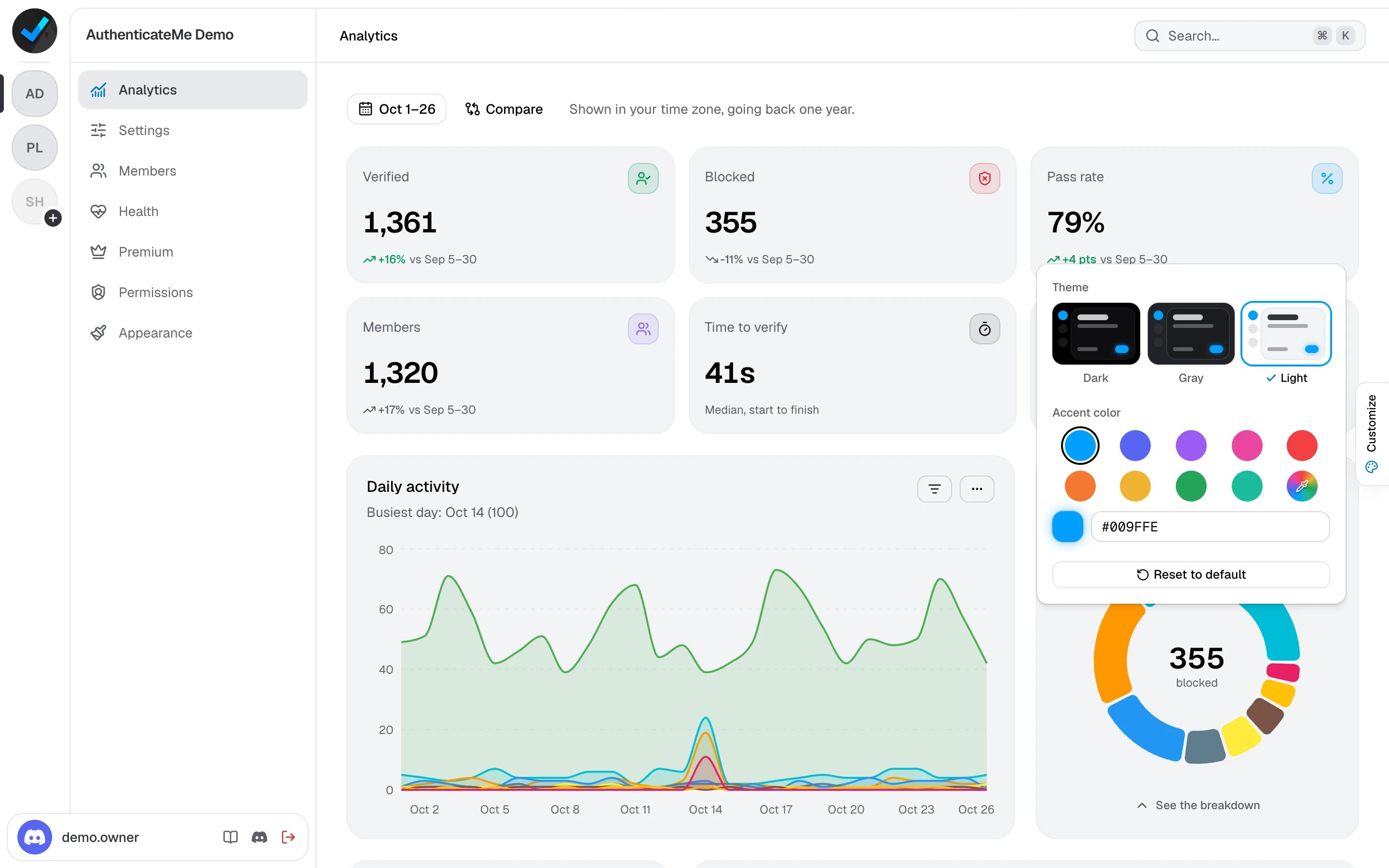
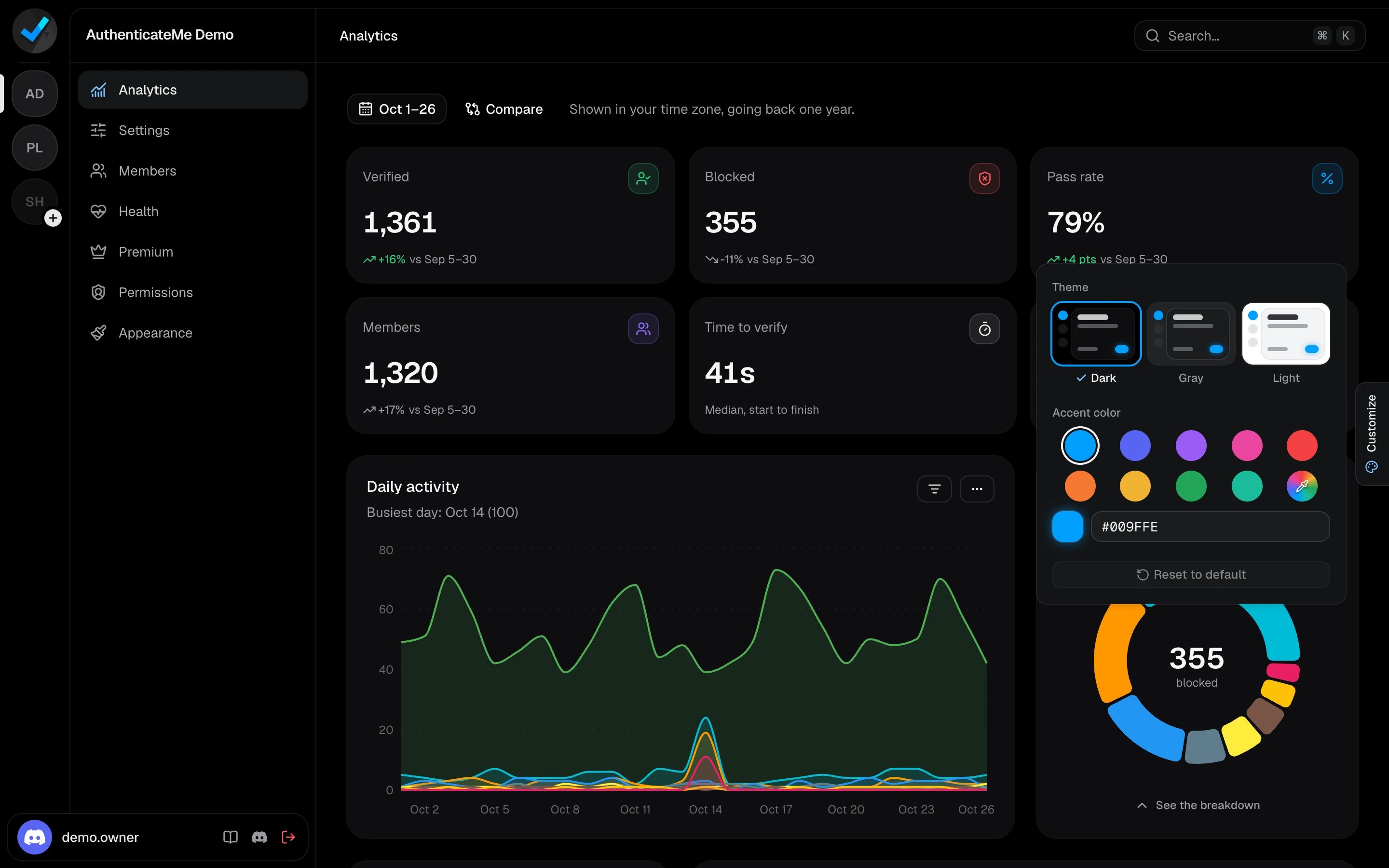
The Customize panel with the theme and accent color optionsThe Customize panel with the theme and accent color options

Saving changes

The Settings, Premium, Appearance, and Permissions pages share one save bar. Make your changes, then click Save changes or press Ctrl S (⌘ S on Mac). Reset throws away everything since the last save. You can move between those pages without losing anything. If you switch servers with unsaved changes, the dashboard asks before throwing them away.

View-only access

If you can see a page but not change it, a notice at the top says so and the inputs are locked. A server admin can give you edit access on the Permissions page.

New servers

A server that isn’t set up yet opens on the Setup screen, and the other pages stay locked until you finish it. See the Quickstart.