Edit the message
On the Settings page, click the paintbrush on the Verification Channel card. The same messages are also on the Appearance page.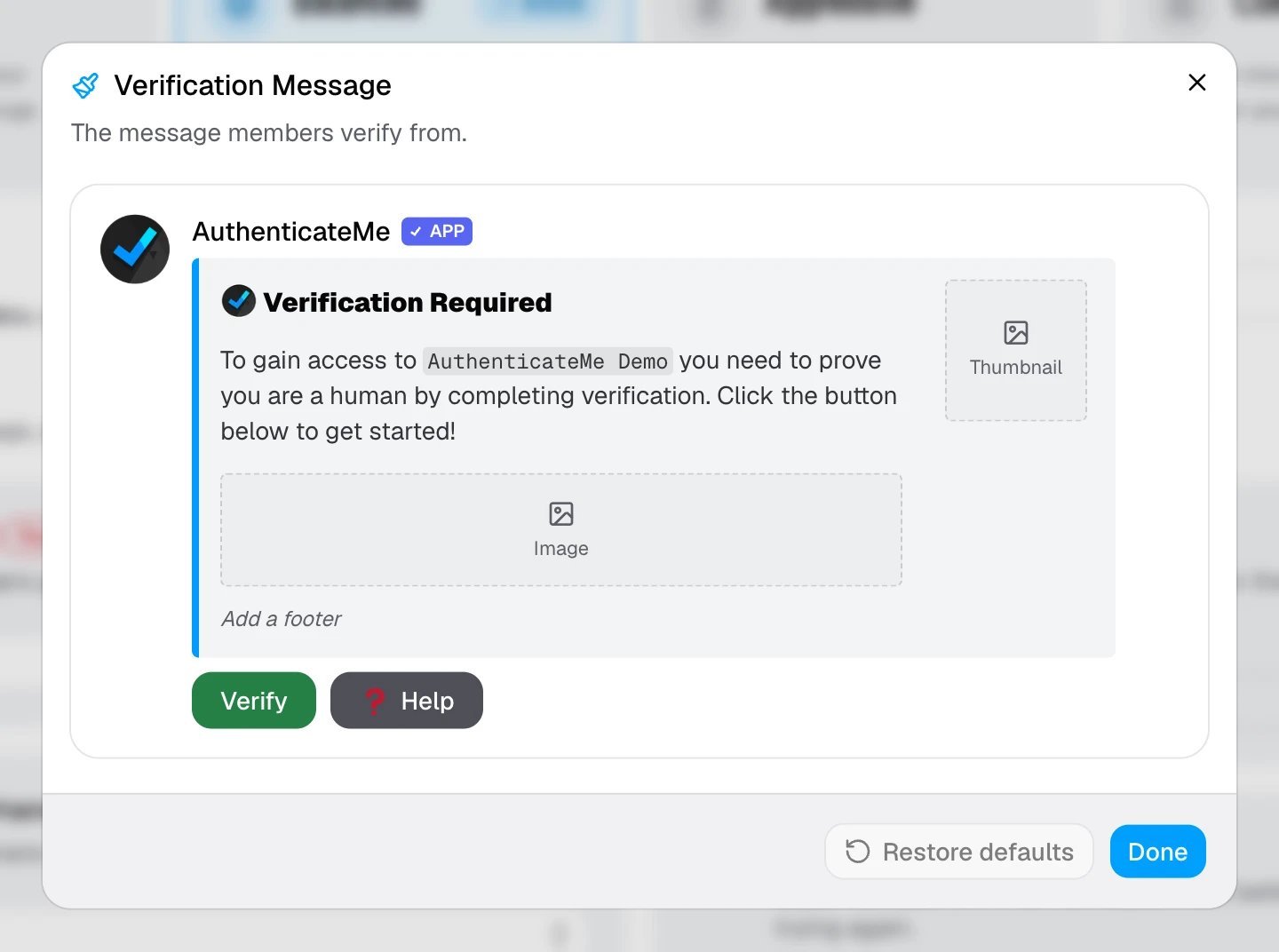
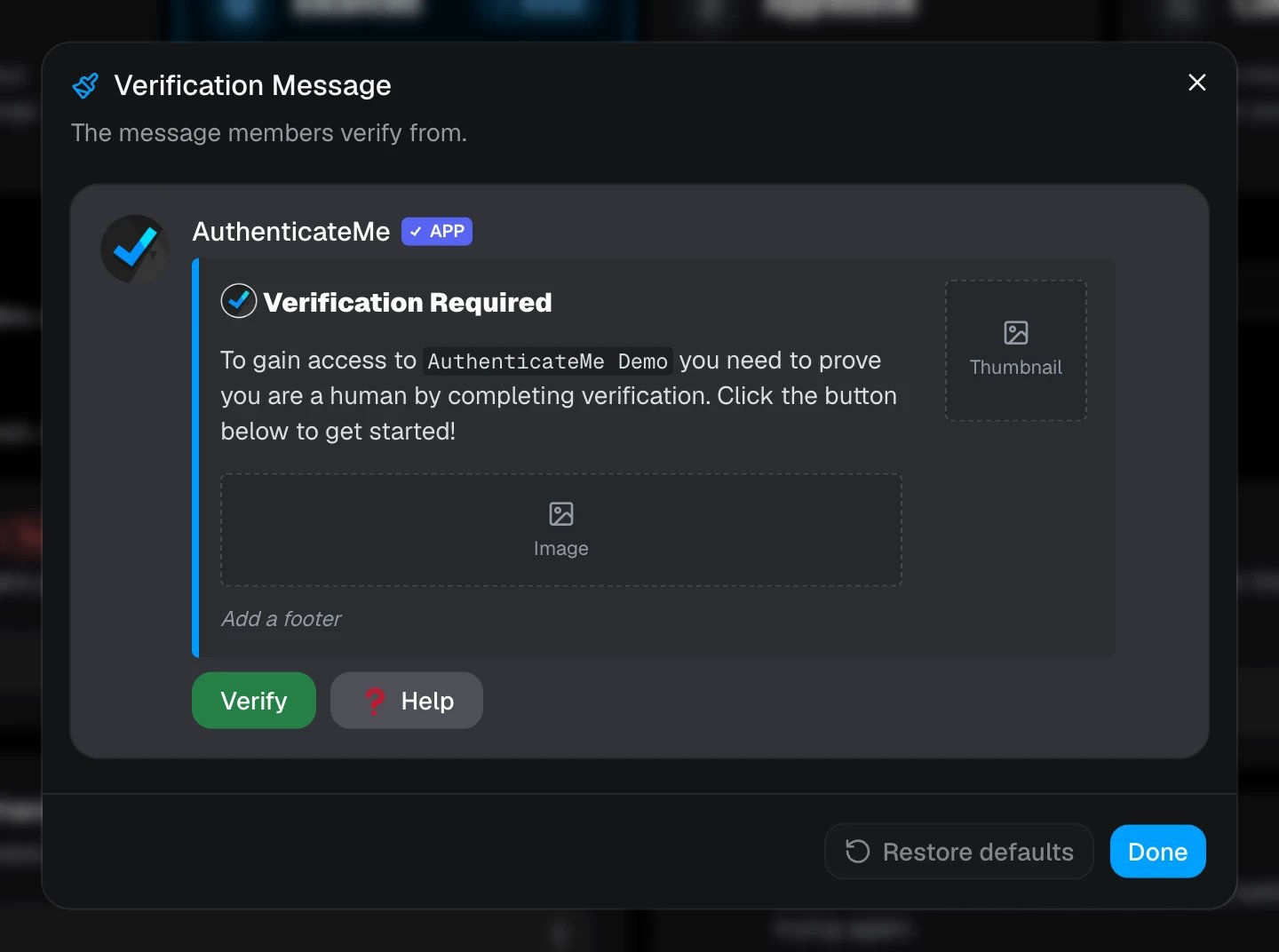
Buttons come in four colors, which are Blue, Grey, Green, and Red. Emojis can be any standard emoji, or a custom emoji from AuthenticateMe or your server.
Click Done to keep your changes, then save the page. Restore defaults brings back the original message.
Editing a message needs edit access to the Appearance page, even when you open the editor from Settings. See Permissions.
The default message
Until you customize it, the message reads “Verification Required. To gain access toyour server you need to prove you are a human by completing verification. Click the button below to get started!” It uses your server’s icon as the thumbnail and has a green Verify button.
The author line
Once a message is customized, AuthenticateMe adds a small line under it that names the member who wrote it, with a link to report the message if it’s abusive.Post the message again
If the message gets deleted, run/embeds embed:Verification Message to post it again in the verification channel. The same command posts the Honeypot warning.