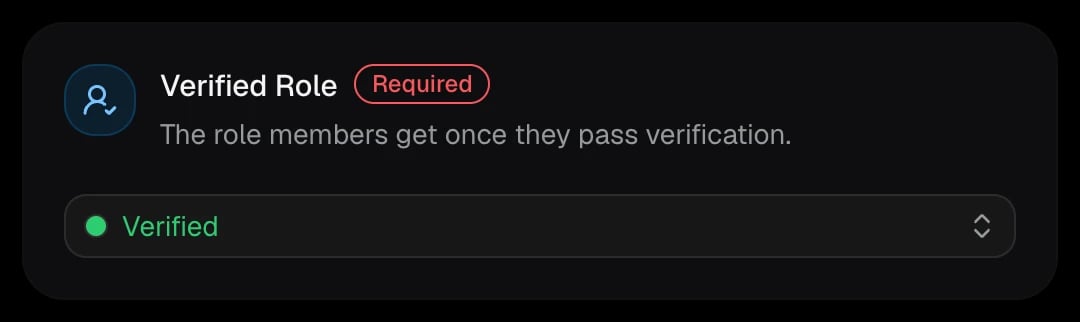
Verified Role Required
The role members get once they pass verification. Use it to unlock the rest of your server.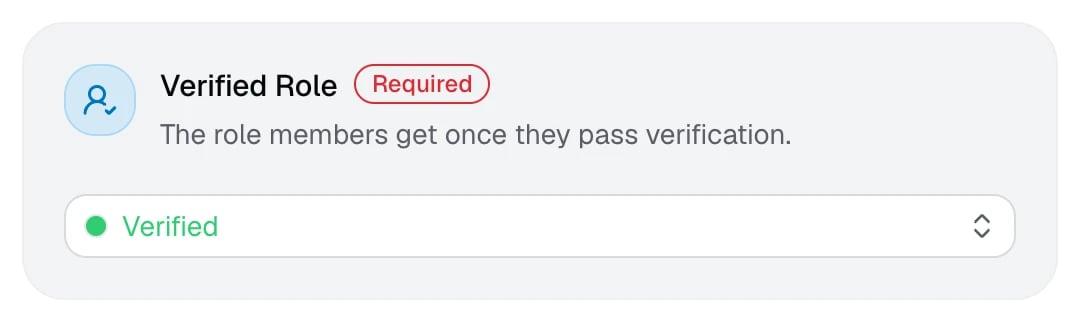
- It can’t be
@everyoneor a role managed by another app. - It has to sit below the AuthenticateMe role. See Role position.
- Give it View Channel on the channels verified members should see.
Verification Channel Required
The text channel where members start verification. AuthenticateMe posts the verification message here, with a Verify button and, if the Help Desk is on, a Help button.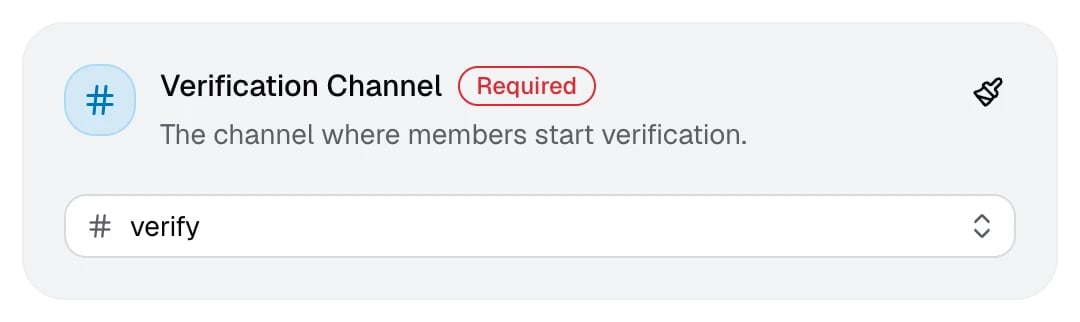
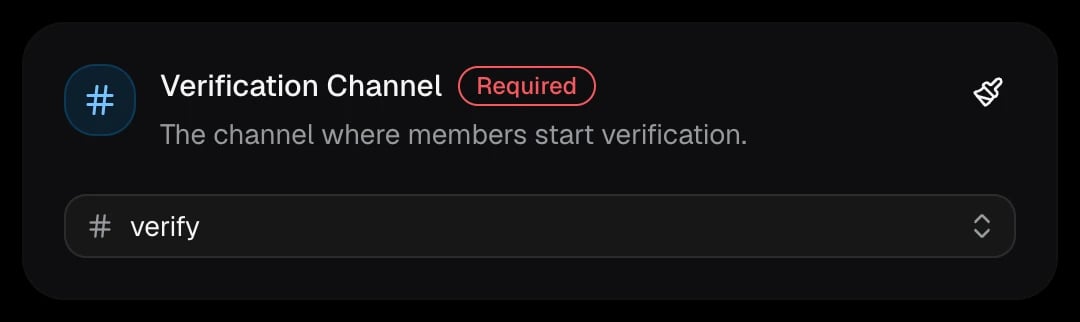
If you use the Help Desk, a private thread is opened in this channel for each member who asks for help, so it has to be a regular text channel.
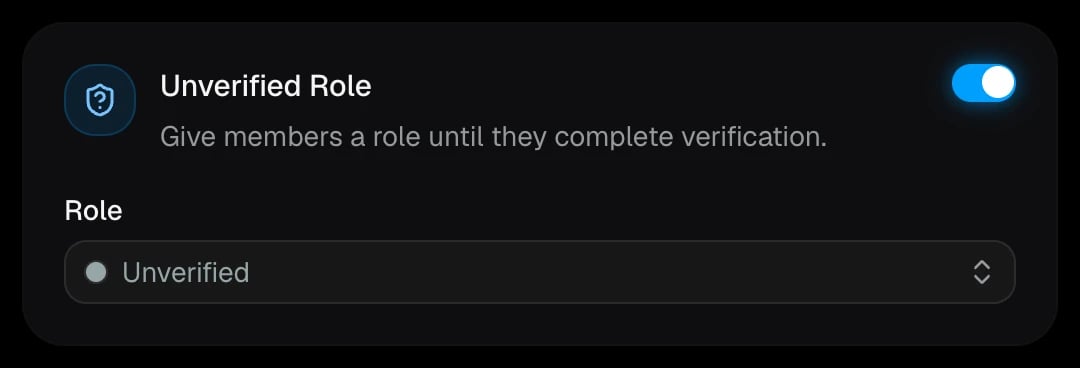
Unverified Role Optional
A role given to members as soon as they join and removed when they verify. It’s useful when your server’s permissions are built around restricting new members rather than unlocking verified ones.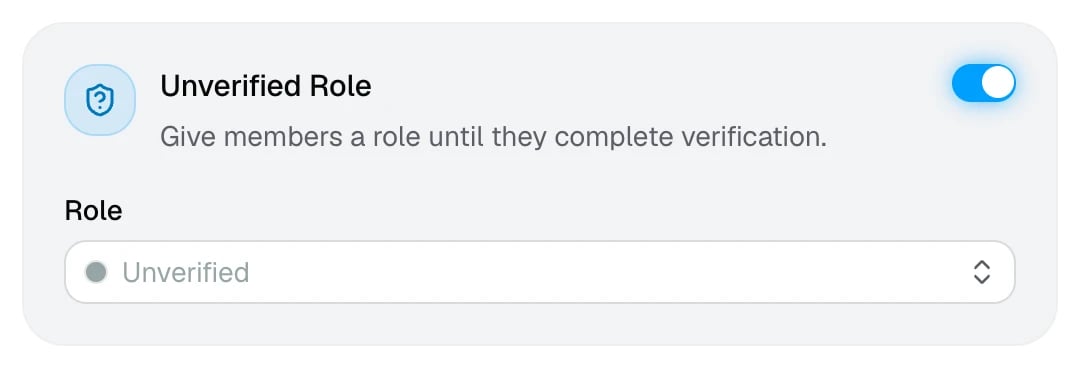
Logs channels Optional
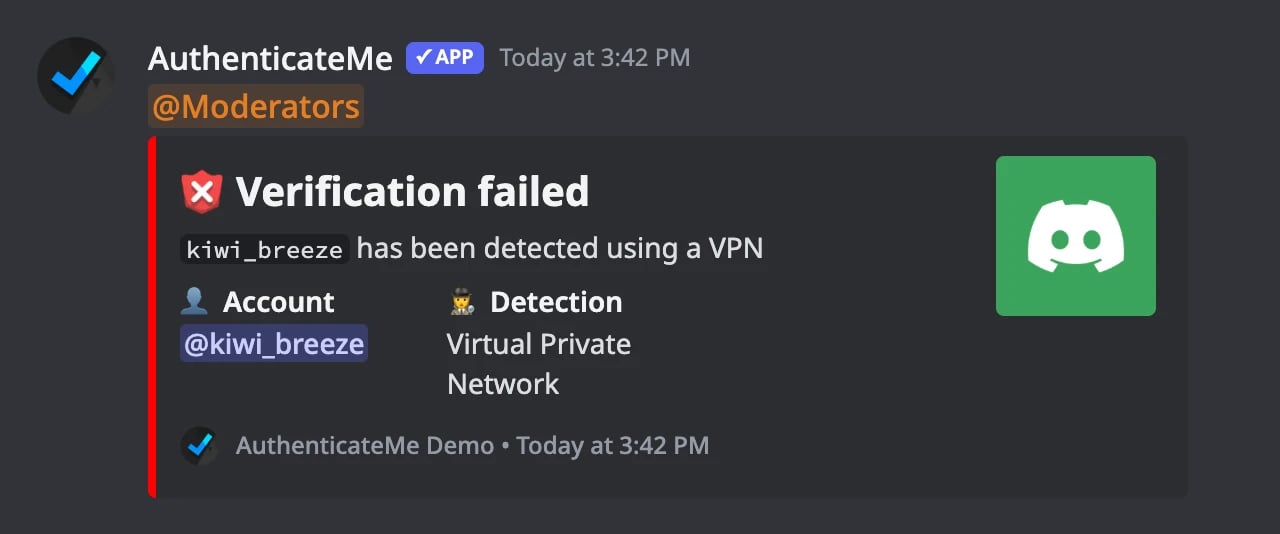
A private channel where AuthenticateMe reports every verification, failure, and staff action. You can send everything to one channel or split each kind of log into its own channel. See Logs and alerts.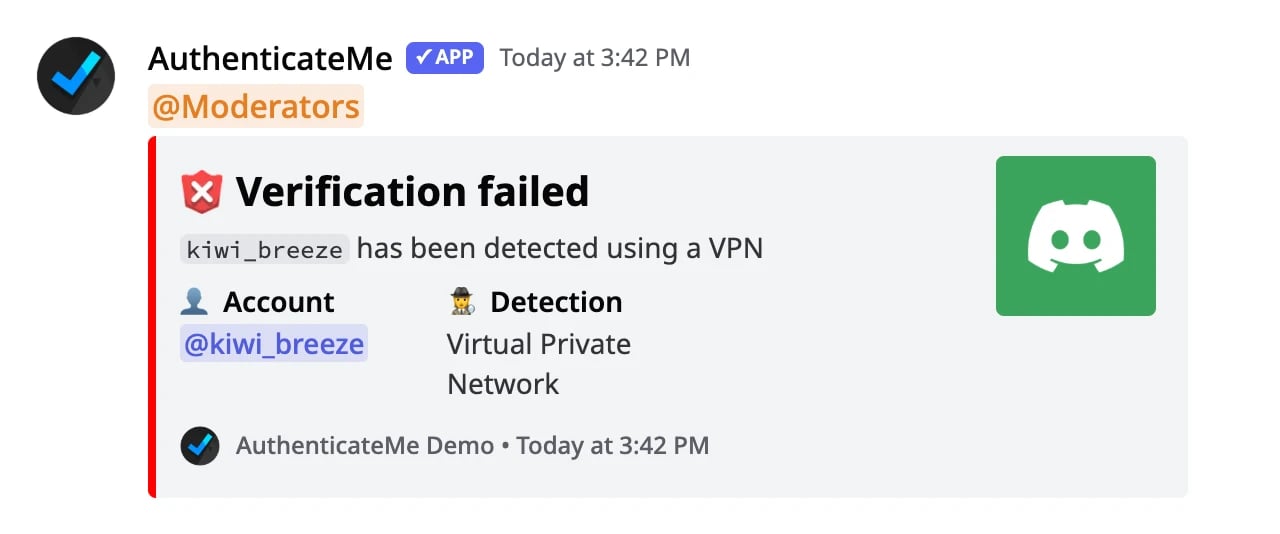
Locking down the rest of your server
There are two common ways to keep new members out until they verify. Pick the one that fits how your server is set up.- Unlock with the Verified Role
- Restrict with the Unverified Role
- On each channel or category, deny View Channel for
@everyone. - Allow View Channel for the Verified Role.
- Keep the verification channel visible to
@everyone.