Verified Role and Verification Channel
The two settings every server needs. The Verified Role is given to members who pass, and the Verification Channel is where they start. Both are covered in detail in Roles and channels.Verification Mode
How members verify, which is one of Web-Link, Button-Click, or Instant-Grant. See Verification modes.Logs
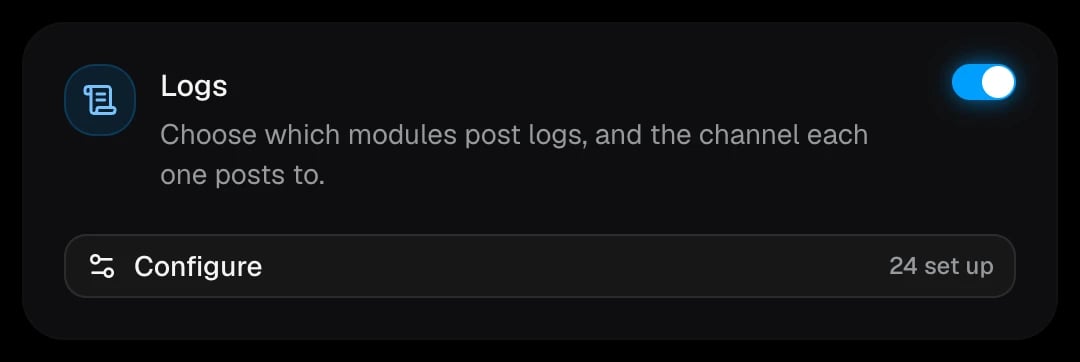
Logs keep your staff informed about every verification. They’re split into modules, and each module can post to its own channel. A module without a channel isn’t logged.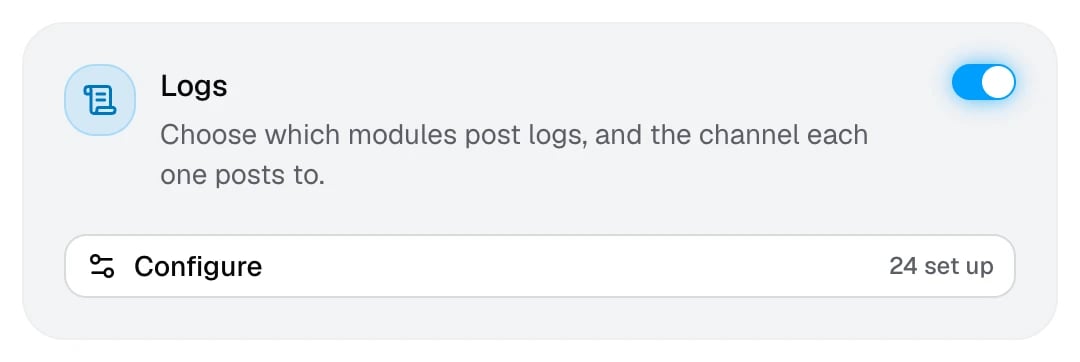
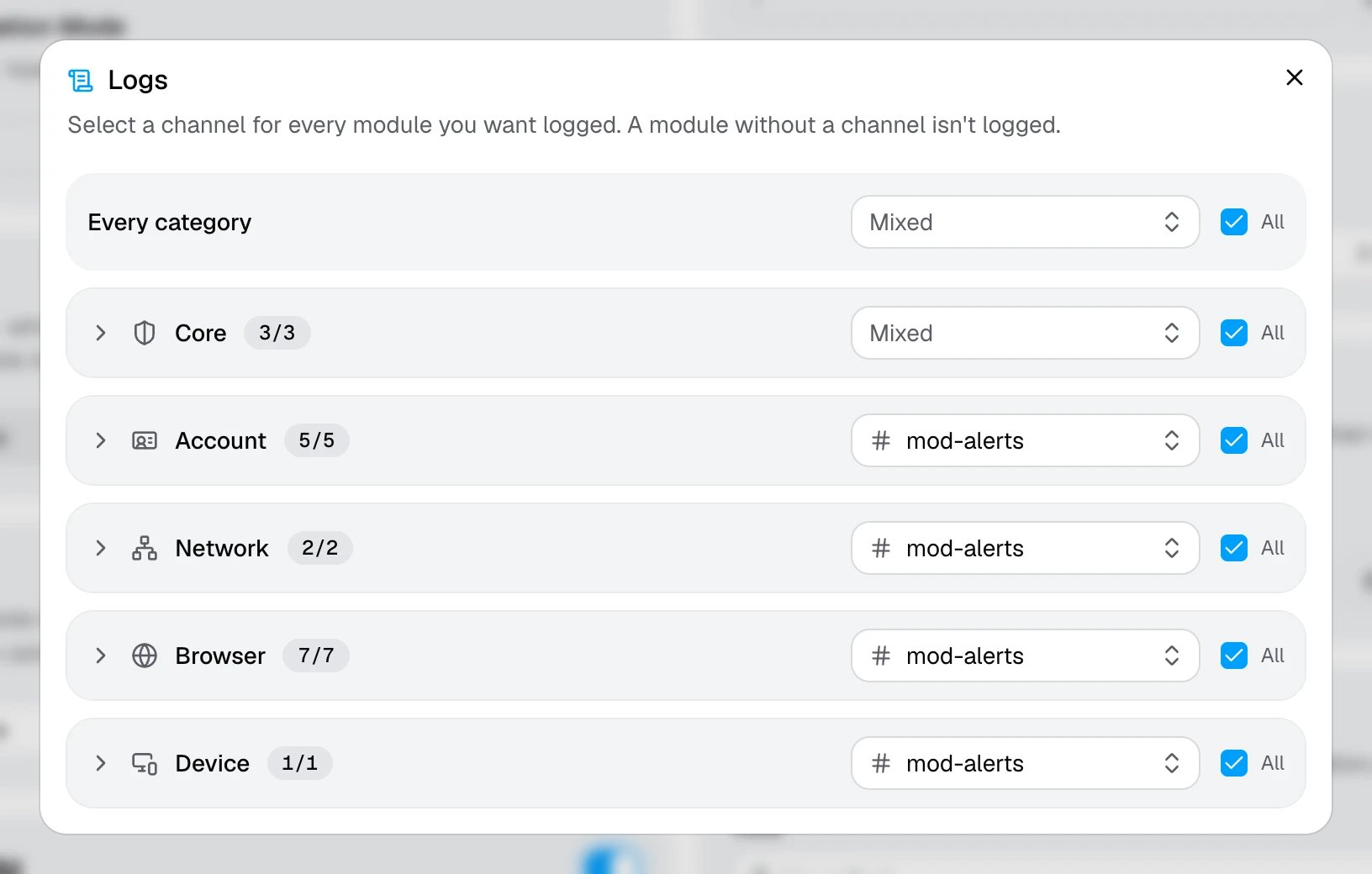
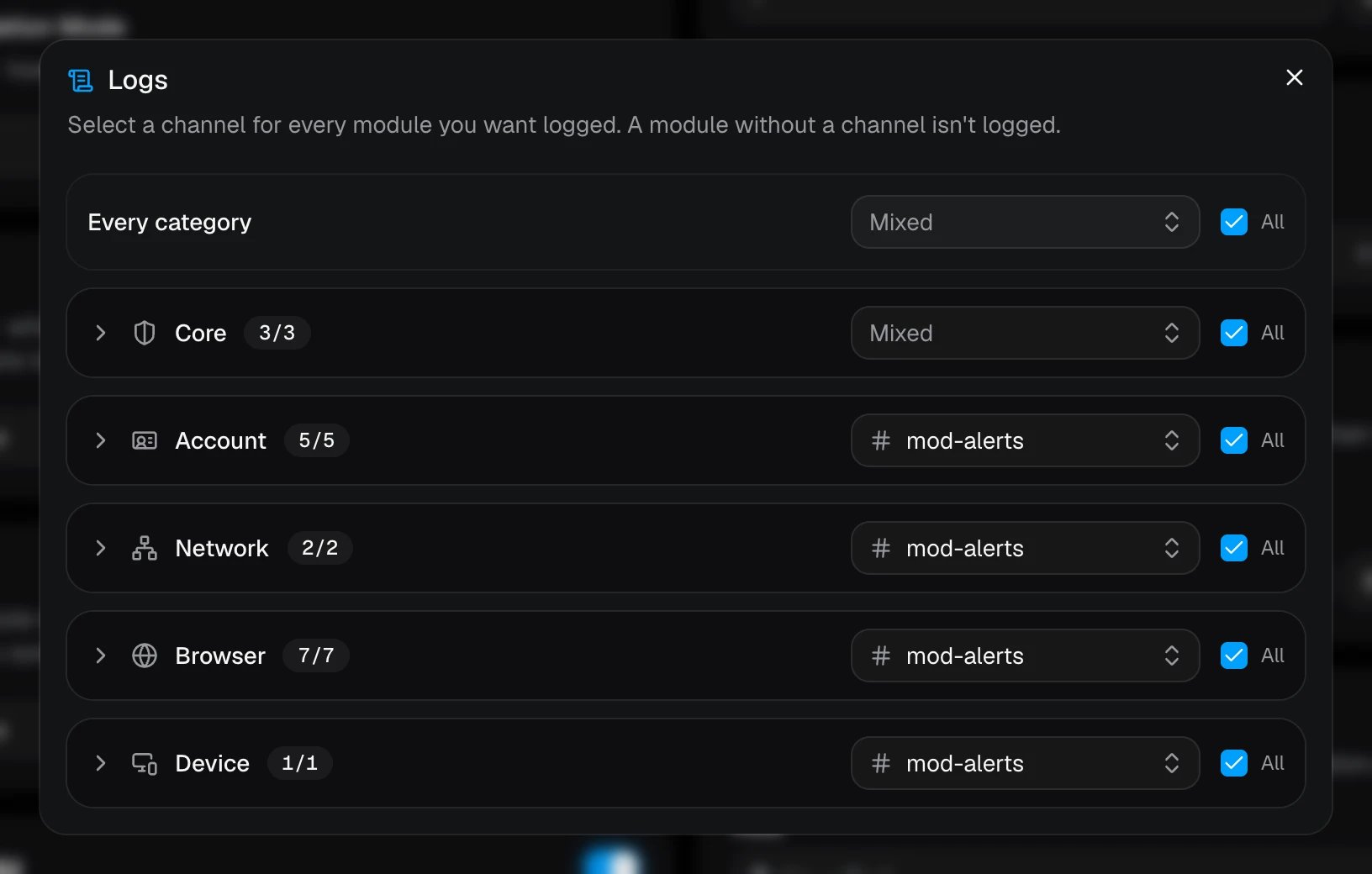
- Every category sets one channel for everything at once.
- Each category row sets a channel for all of its modules. Expand a row to pick a channel per module.
- The All checkbox turns every module in that row on or off.
Modules
A common setup sends Successful Verifications and General Logs to a quiet channel, and every failure to a separate channel your moderators watch.
What a log looks like
- Passed
- Failed
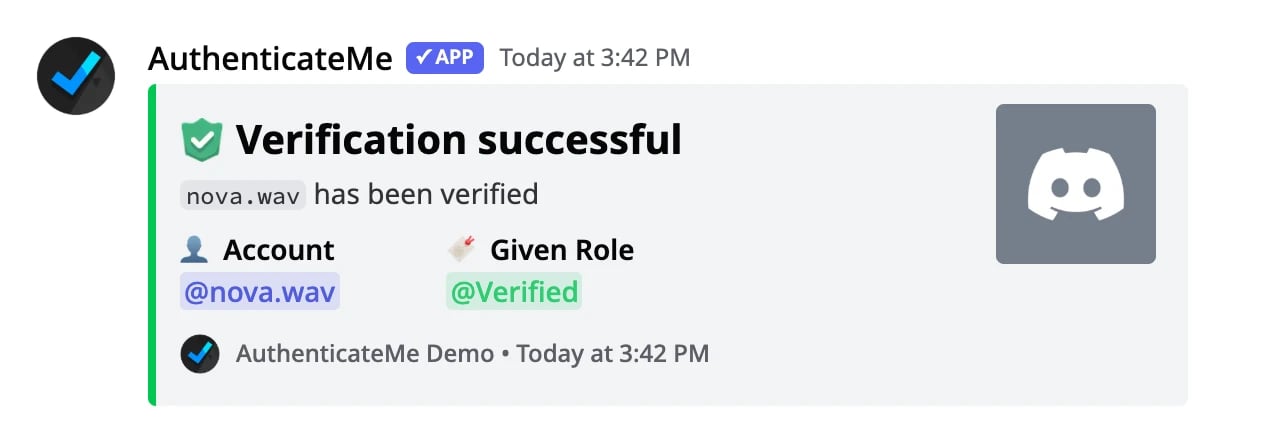
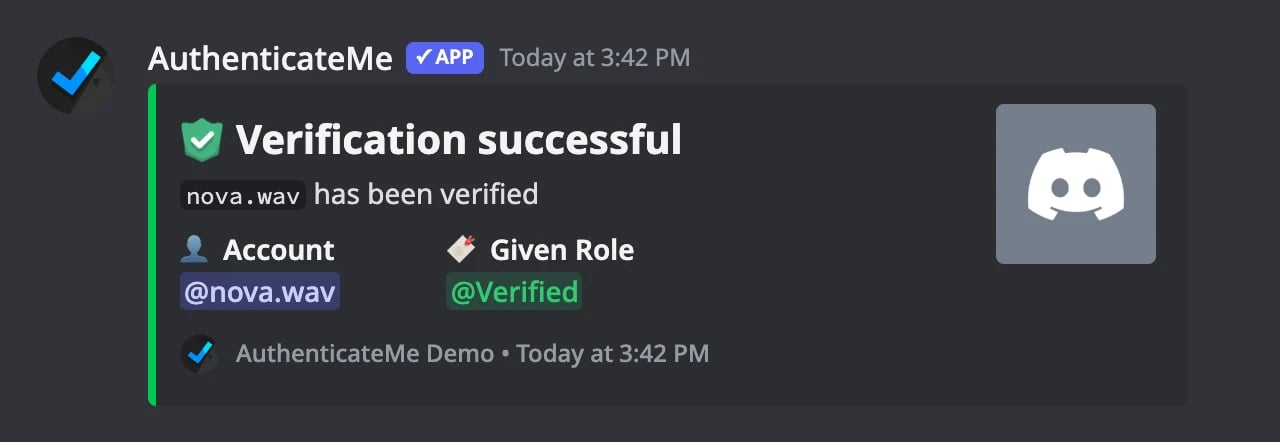
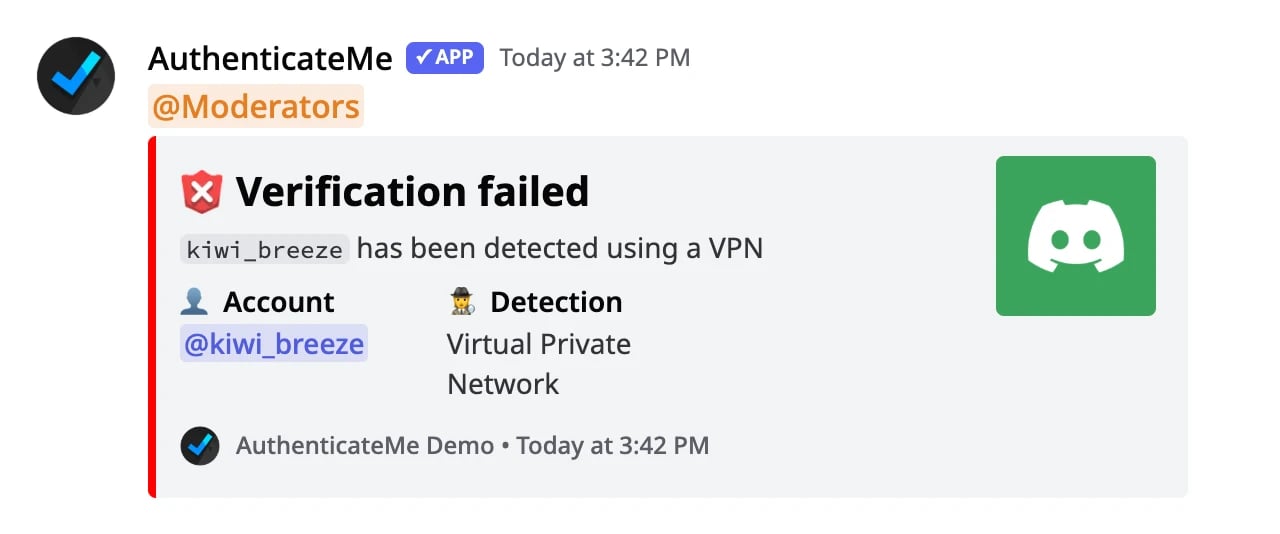
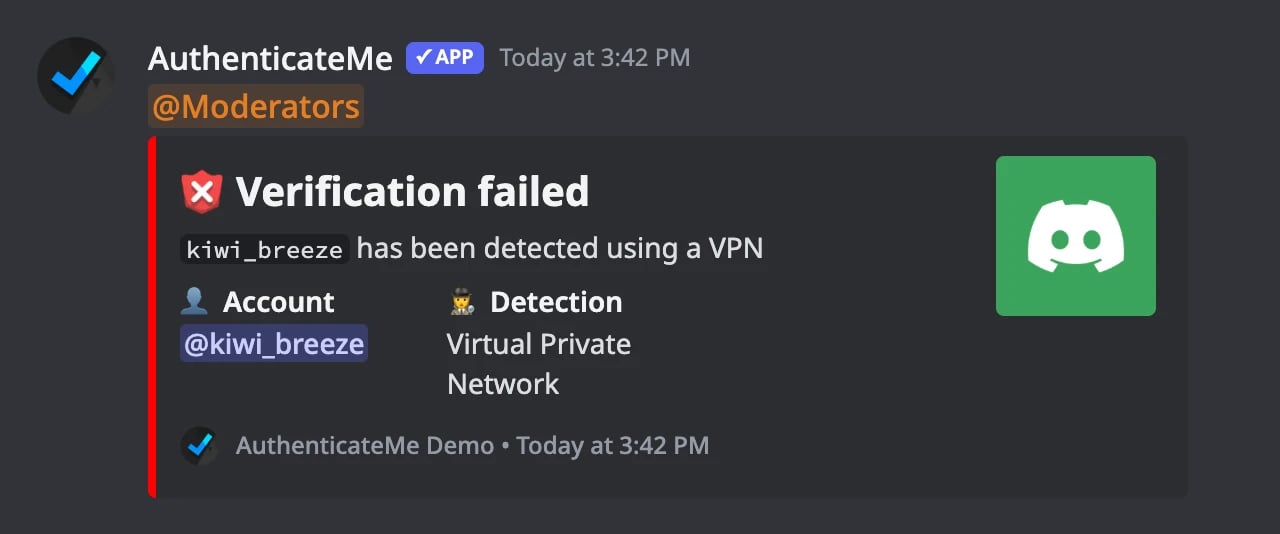
Logs only show what staff need. Raw IP addresses, emails, cookies, and fingerprints are never posted. See Data Collection.
Alerts
Alerts ping a role in a module’s logs channel whenever that check catches someone. They need Logs to be on, and a check only shows up here once its module has a logs channel.
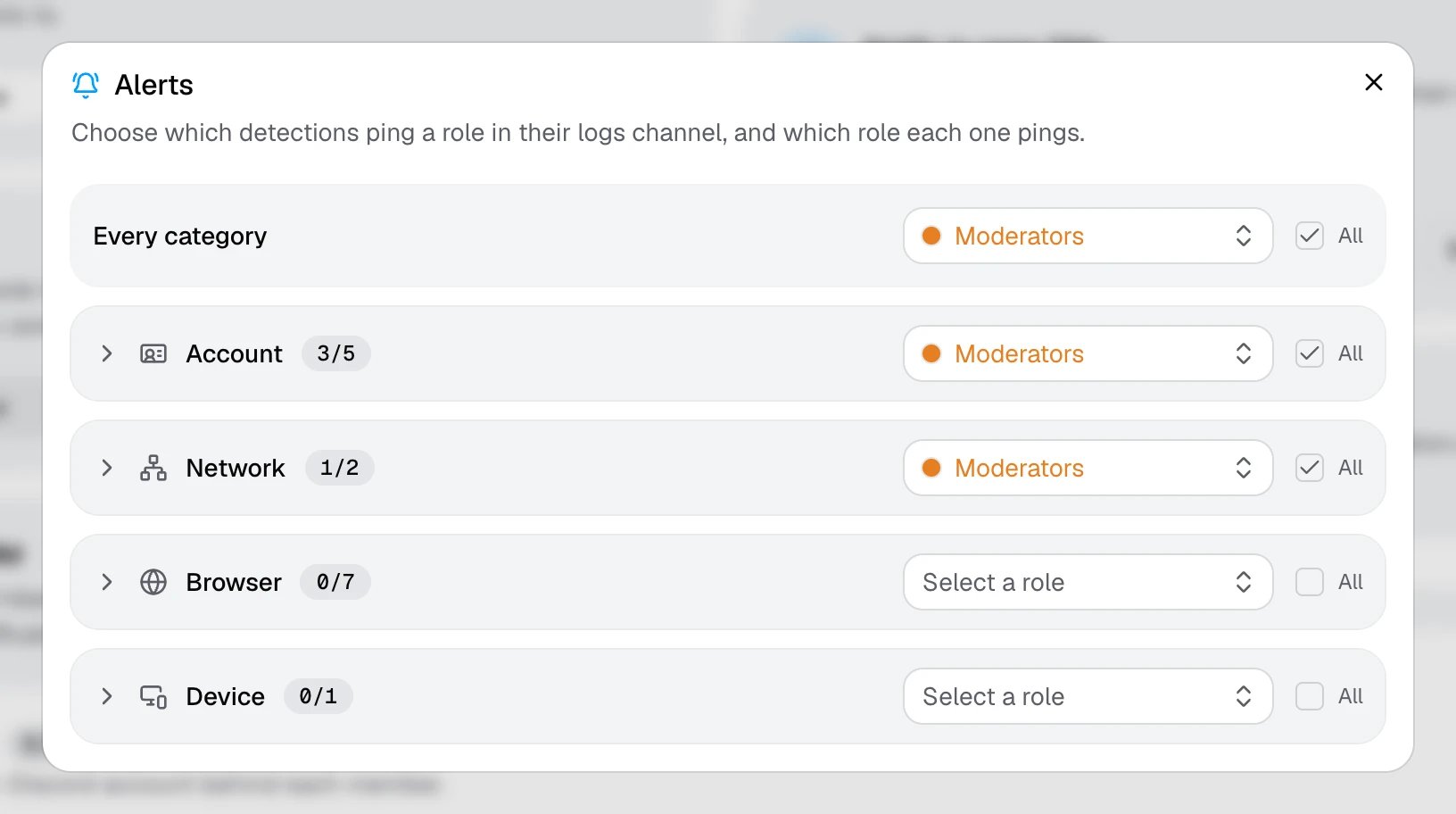
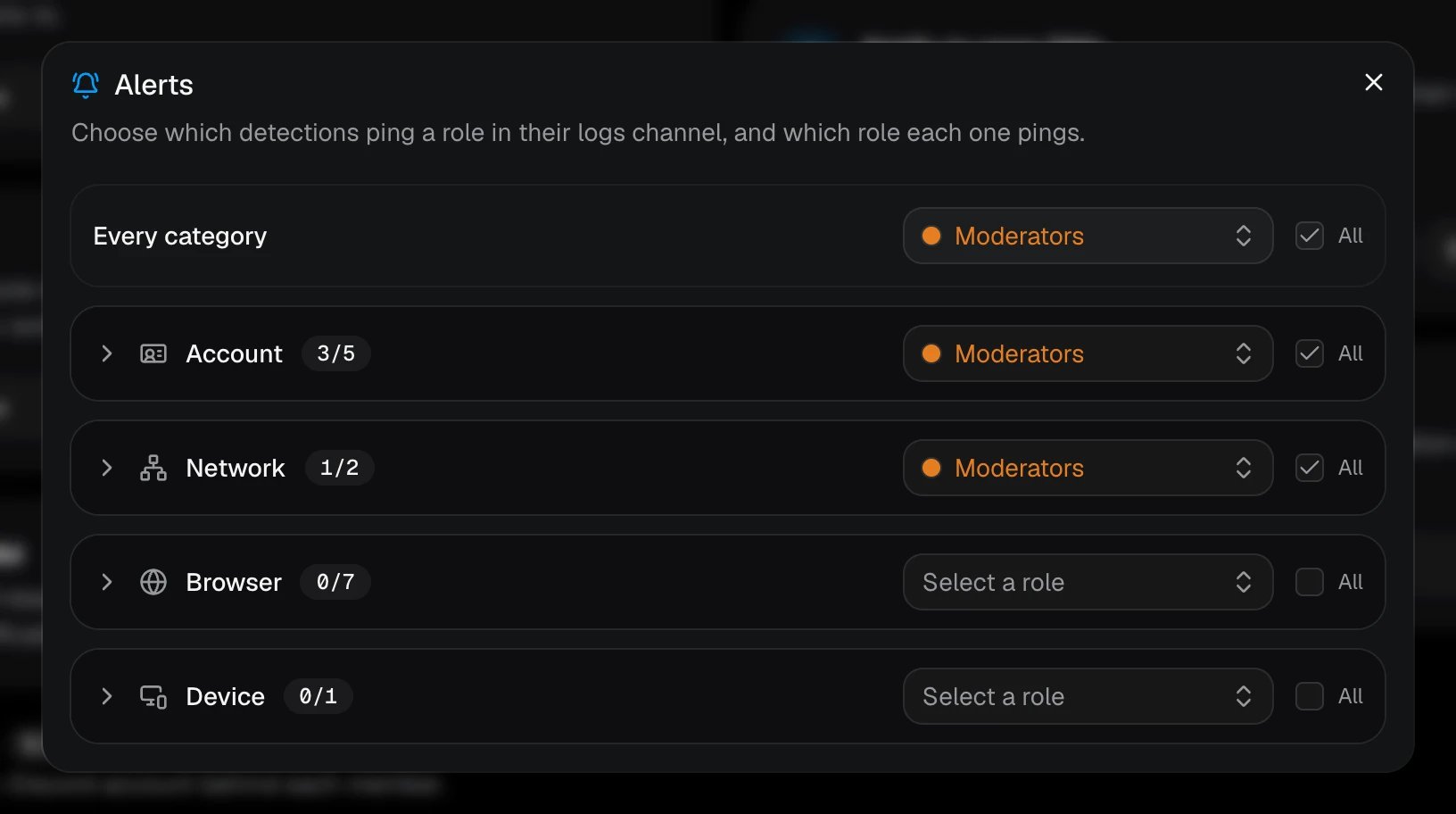
The role has to be mentionable, or AuthenticateMe needs the Mention @everyone, @here and All Roles permission in the logs channels it pings in. The Health page warns you if a role can’t be pinged.
Auto DM
DM members when they join, and when they pass or fail verification.
With Auto DM on, members get a DM as soon as they join. In Web-Link mode it holds their personal verification link, and in Button-Click mode it points them to the verification channel. AuthenticateMe also DMs members when their time to verify runs out, and in Instant-Grant mode when they’re verified.
Members always get a DM with the result after they verify on the web page or with the Verify button, even with Auto DM off, so they know why they weren’t let in.
Notify to open DMs
Ping members in the verification channel when their DMs are closed.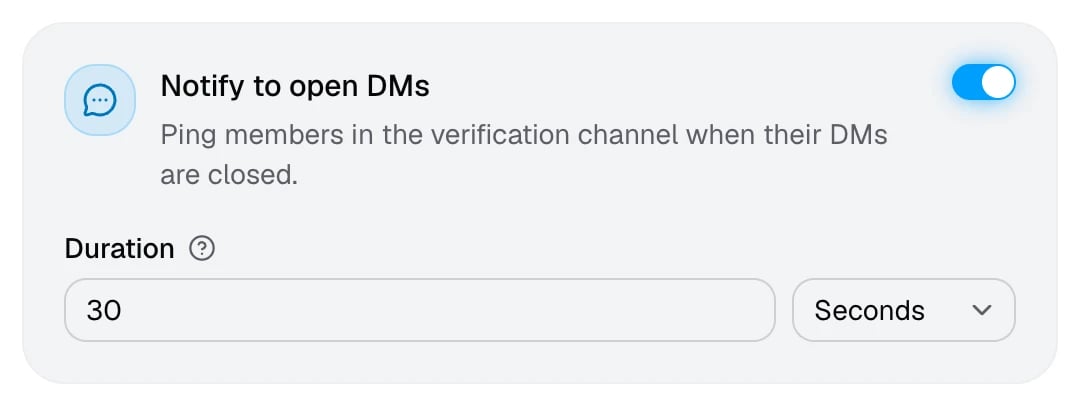
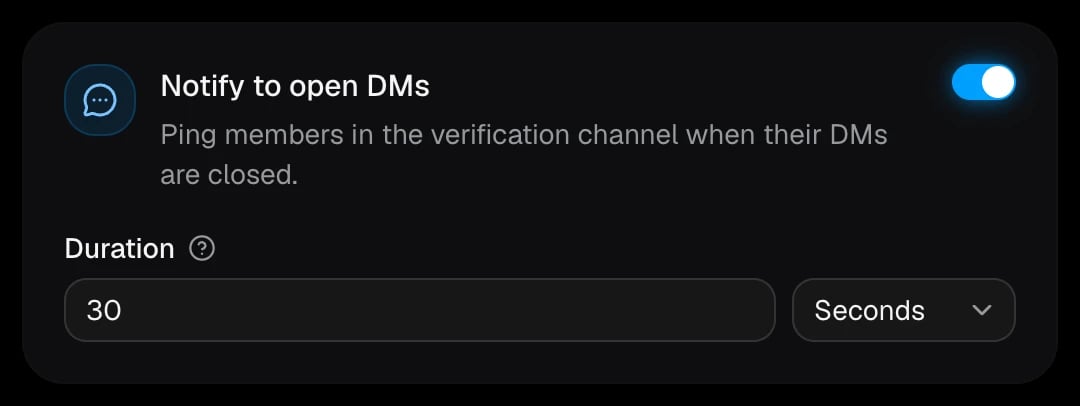
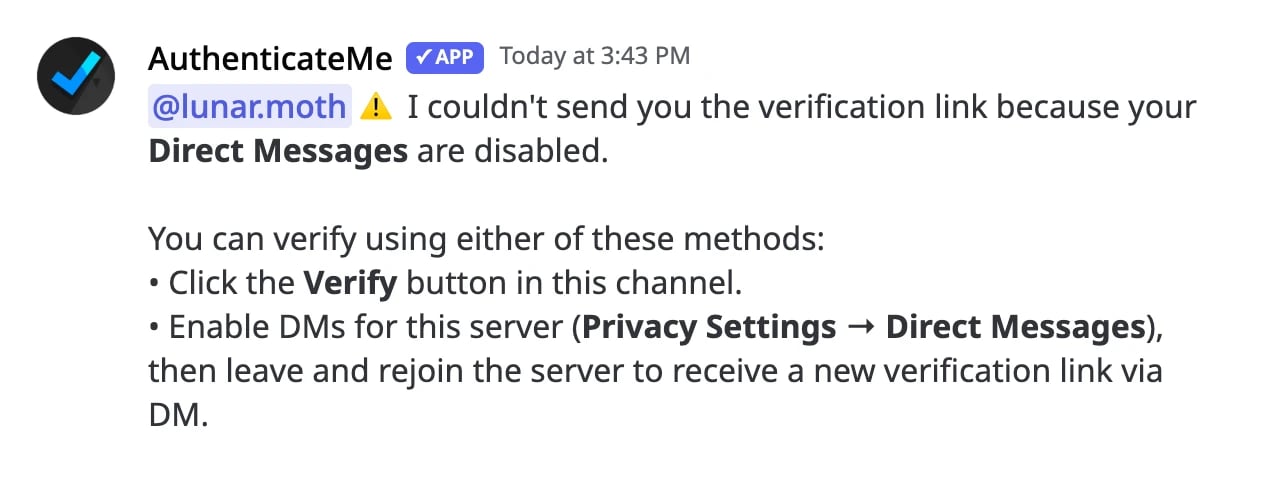
When the join DM can’t be delivered, AuthenticateMe mentions the member in the verification channel and explains how to verify anyway. The message deletes itself after the duration you pick.
Auto Kick
Kick members who haven’t verified within the set time.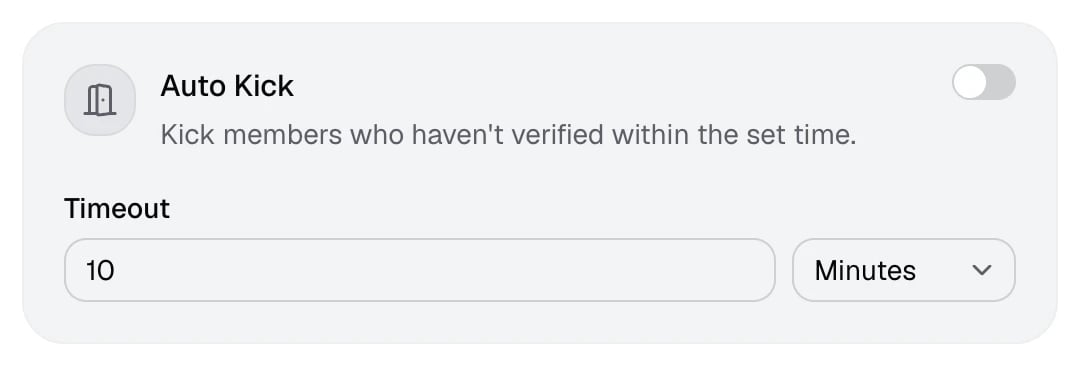
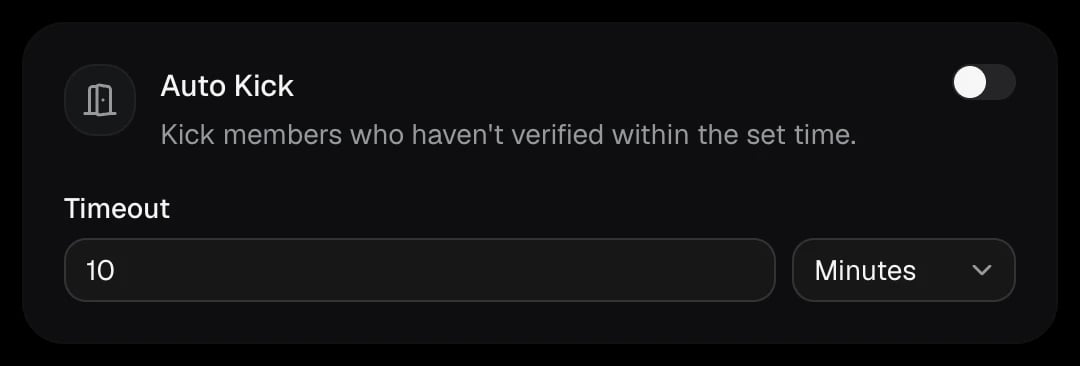
The timer starts when a member joins. If they’re still unverified when it runs out, they’re kicked with the reason “Auto Kick” and a log is posted. With Auto Kick on, the join DM tells members how long they have, and their verification link stays valid for the same time.
Cooldown
Make members who fail verification wait before trying again.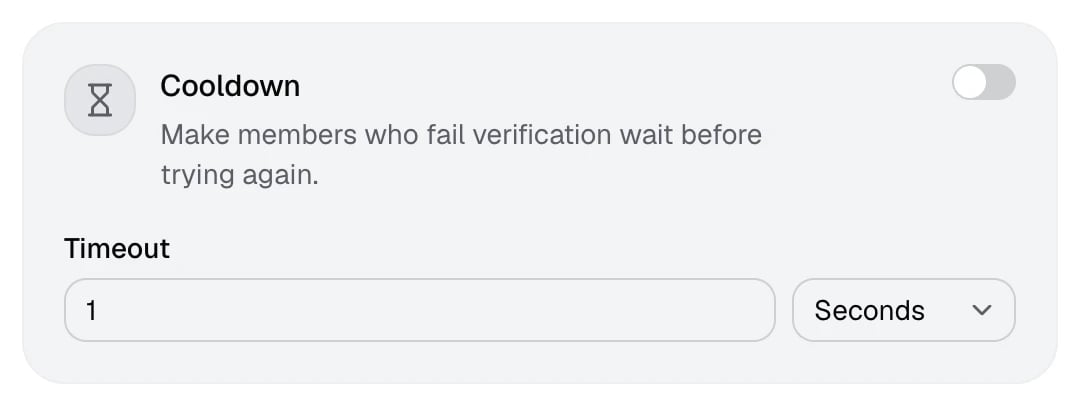
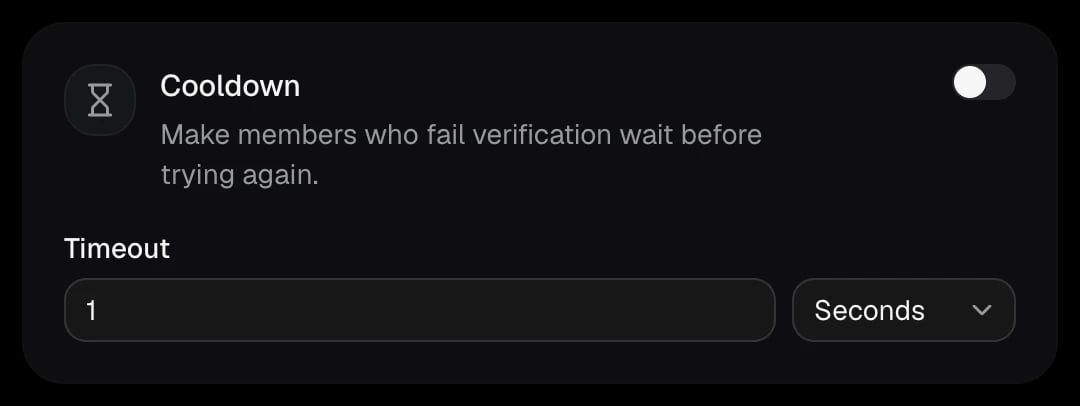
The wait is counted from the member’s last failed attempt. A member on cooldown sees “You’re on cooldown, try again in” followed by the time left. Being on cooldown isn’t a failure, so it isn’t logged and no action is taken.
Help Desk
The Help Desk adds a Help button to your verification message. Members who can’t get verified press it, and AuthenticateMe opens a private thread between them and your support team, with their verification history already in it.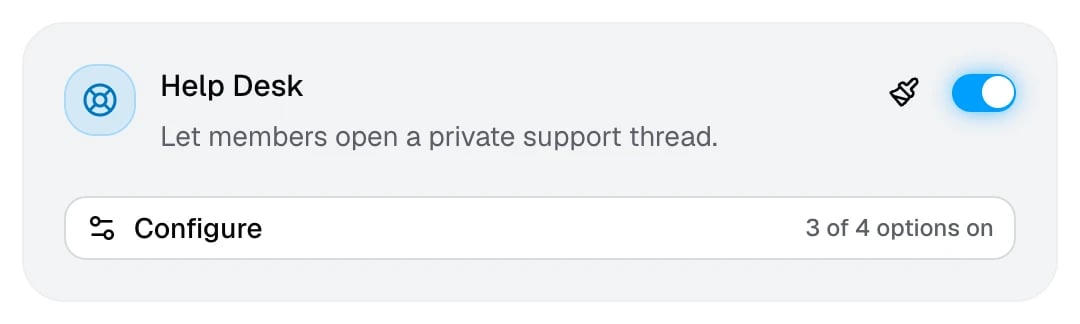
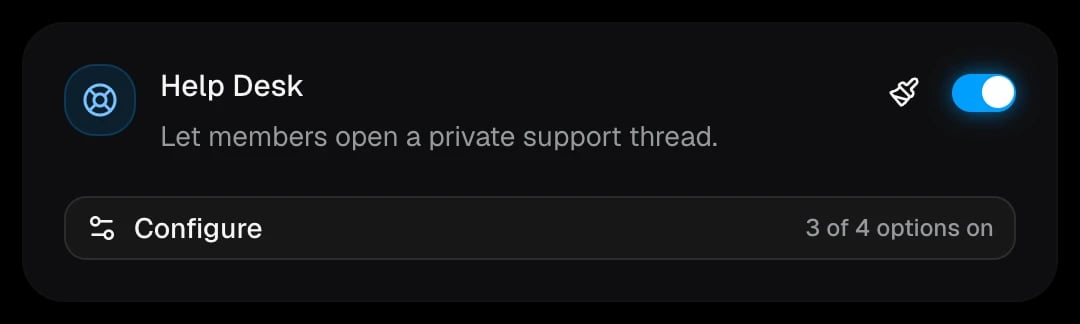
Set up the Help Desk
1
Turn on Help Desk
In Settings → Core, switch on Help Desk and click Configure.
2
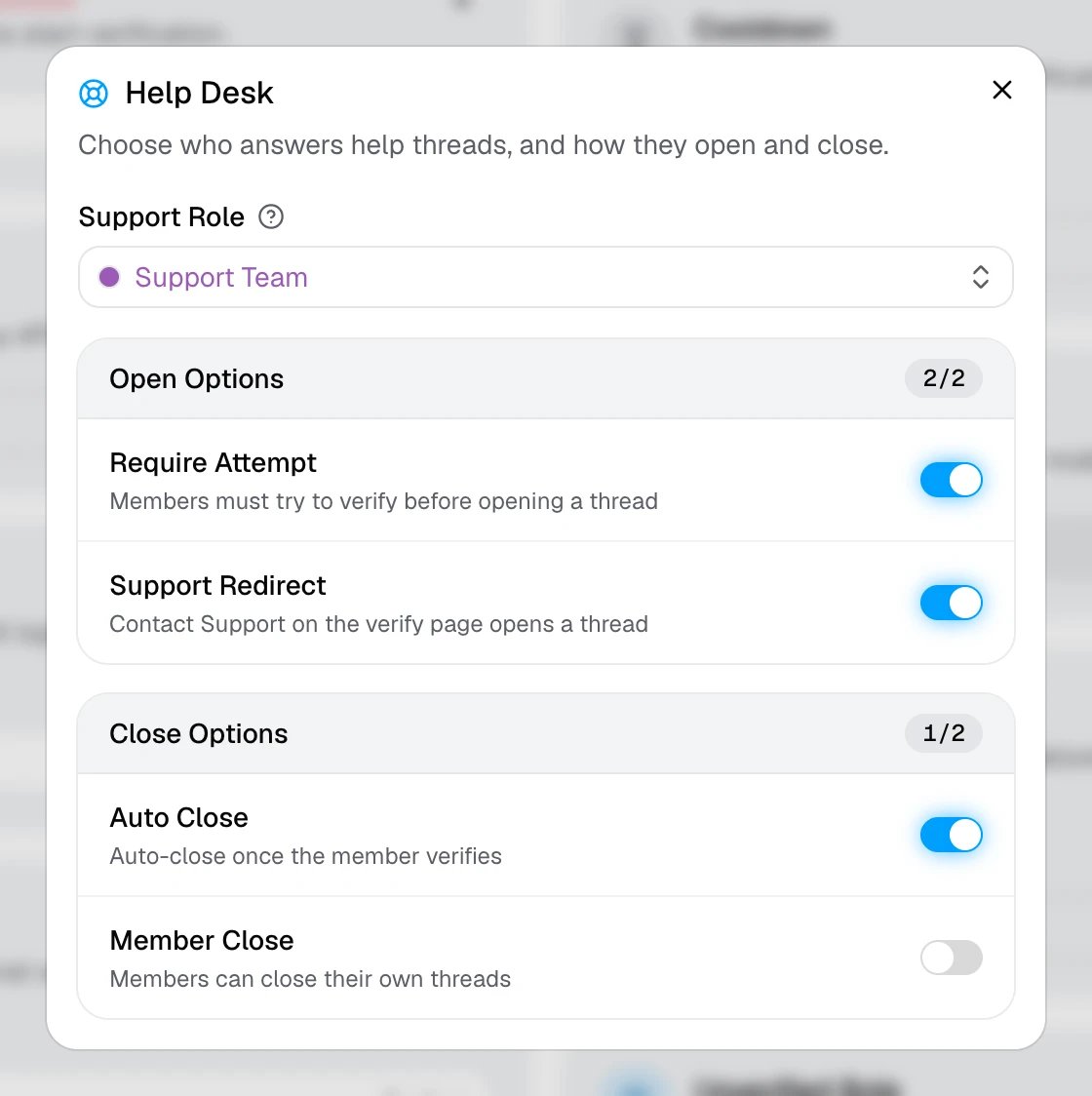
Pick a Support Role
Everyone with this role is added to each help thread. The role has to be mentionable, or AuthenticateMe needs the Mention @everyone, @here and All Roles permission.
3
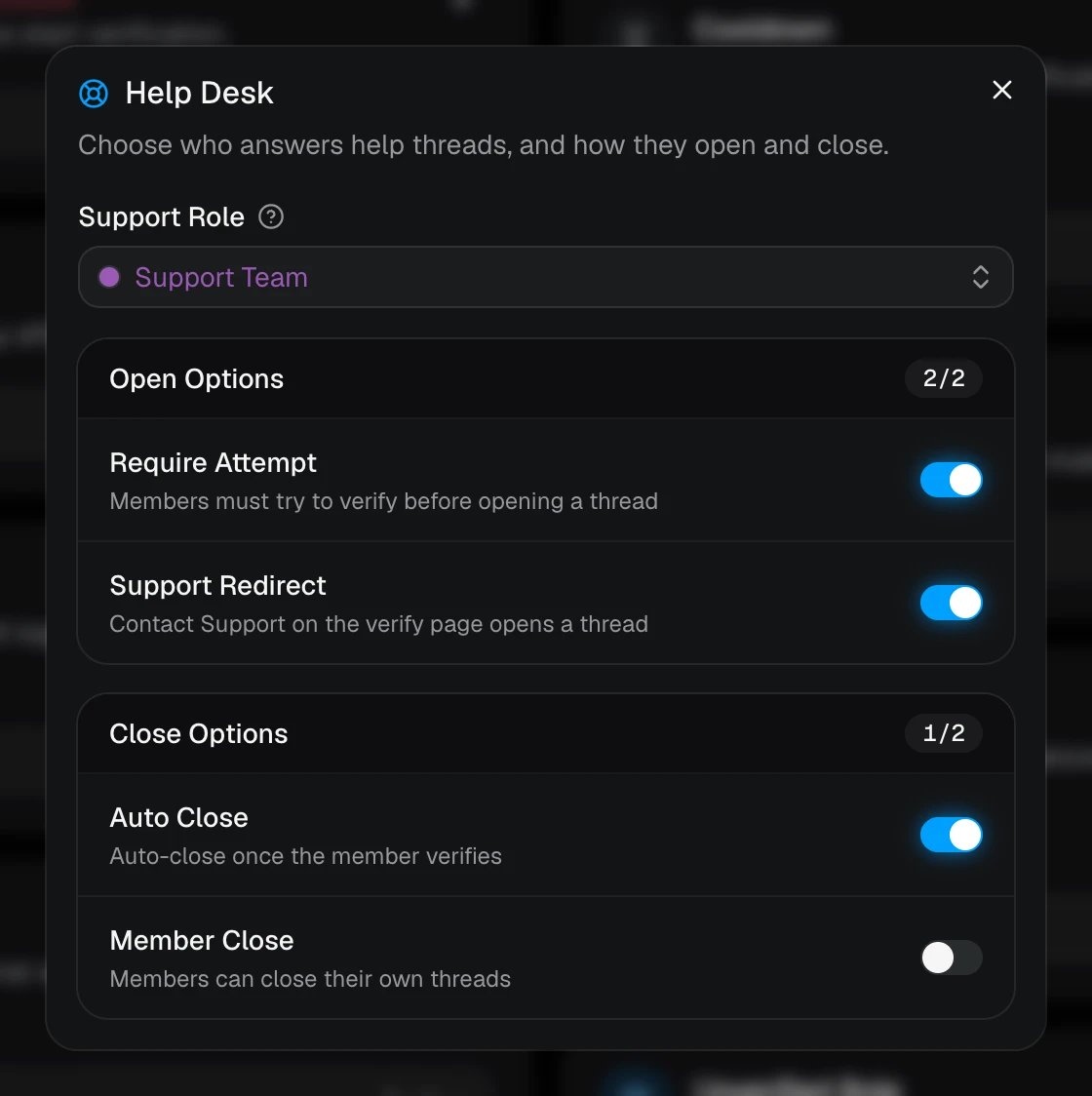
Choose how threads open and close
4
Save
AuthenticateMe reposts the verification message with the Help button. Use the paintbrush on the card to change the first message posted in each thread.
What members see
When a member presses Help, AuthenticateMe opens a private thread named after them and pings them and your Support Role in it. Pressing it again later reopens their existing thread instead of starting a new one. The first message in the thread is pinned. It shows your Help Desk message, which by default asks the member to describe what went wrong, and a Verification Records list of their failed attempts so staff can see the problem right away. Threads archive themselves after a week of inactivity, and close automatically when the member leaves the server.Close a thread
Press Close in the thread. Members of the Support Role and anyone with Manage Threads can always close threads, and the member who opened it can too when Member Close is on. Closed threads are locked and archived. Opening and closing a thread is posted to the Help Desk logs module, with a button that jumps to the thread. See Logs.Unverified Role
Give members a role until they complete verification.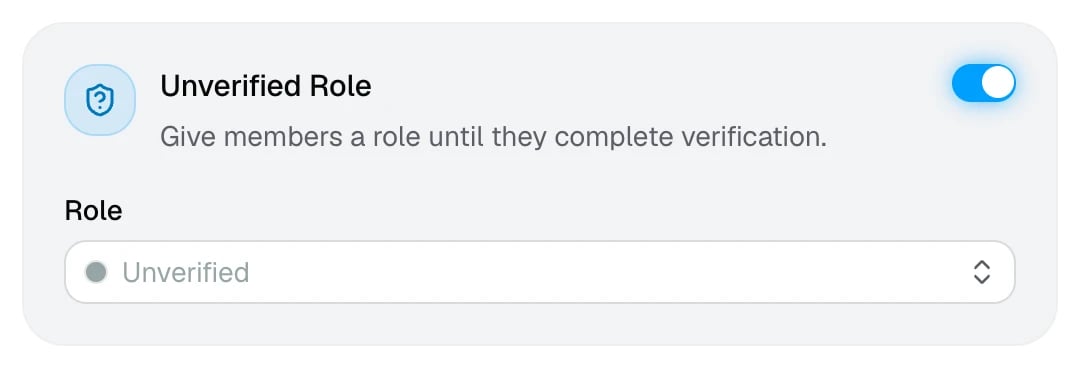
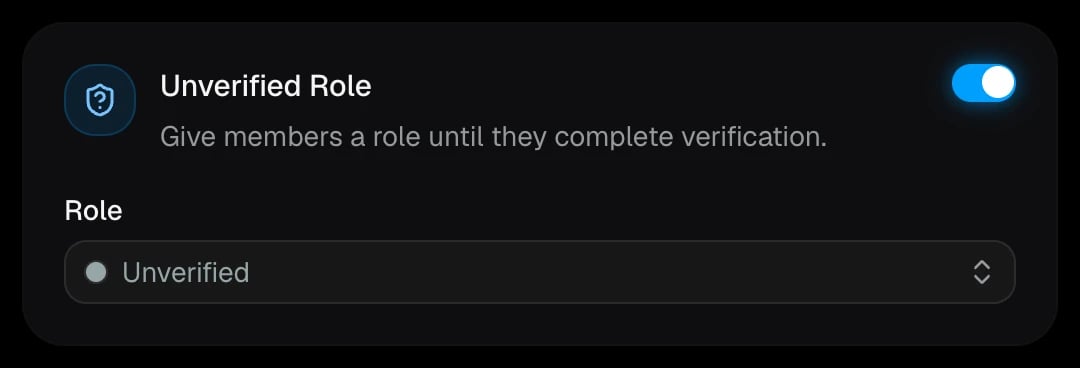
The role is added when a member joins and removed when they verify. When you reset a member, they get it back. The role has to sit below the AuthenticateMe role, and it can’t be
@everyone or a role managed by another app.