Invite the app

You need the Manage Server permission to add an app to a server.
  1. Open the dashboard and sign in with Discord.
  2. Your servers are listed in the rail on the left. Servers without AuthenticateMe are greyed out with a + badge.
  3. Click the server to open Discord’s invite screen, then choose Authorize.
The Add to Discord button on authenticateme.xyz works too.

Permissions

The dashboard invite asks for Administrator, which is the simplest way to make sure every feature works. If you’d rather grant permissions one by one, give the AuthenticateMe role the ones below for the features you use.
You don’t have to work this out by hand. The Health page and the /health command list every permission your current settings need and flag the ones that are missing.

Role position

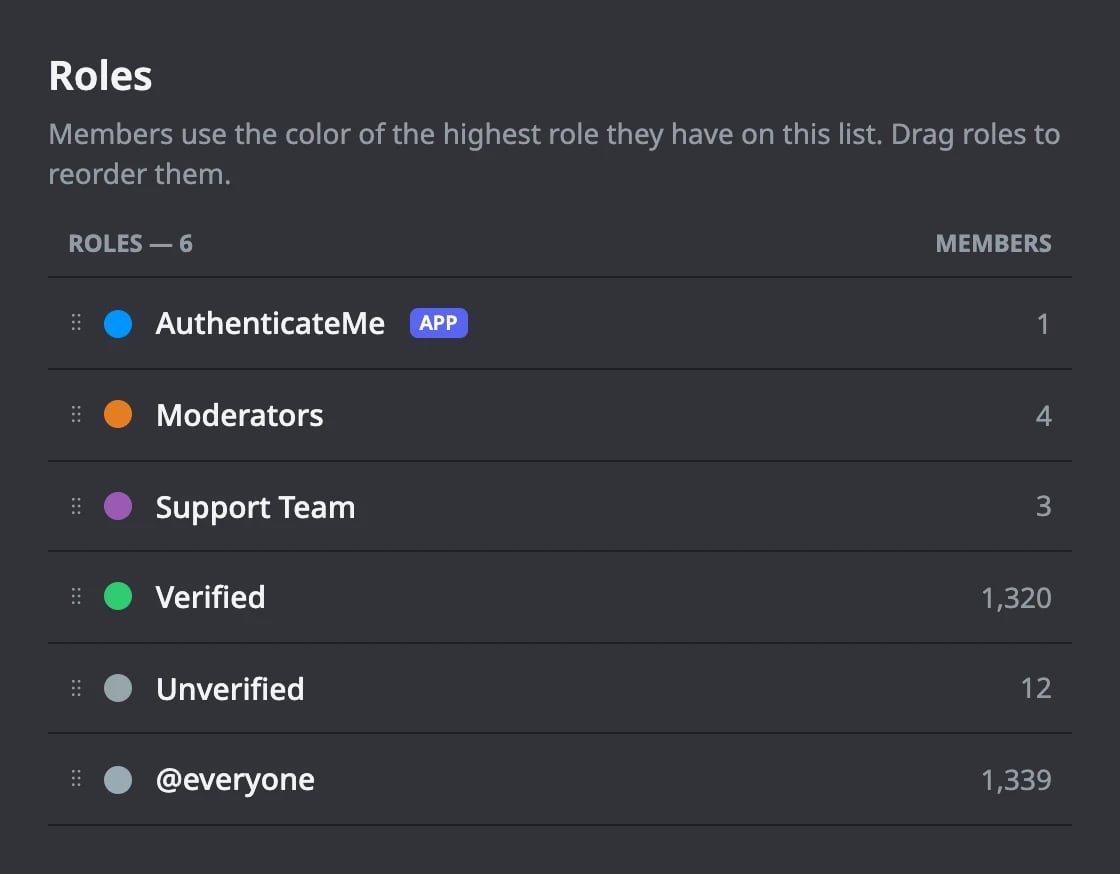
Discord only lets an app give or remove roles that sit below its own highest role, even with Administrator. Open Server Settings → Roles and drag the AuthenticateMe role above these roles.
  • The Verified Role
  • The Unverified Role, if you use one
  • The Max Verifications role, if you set one
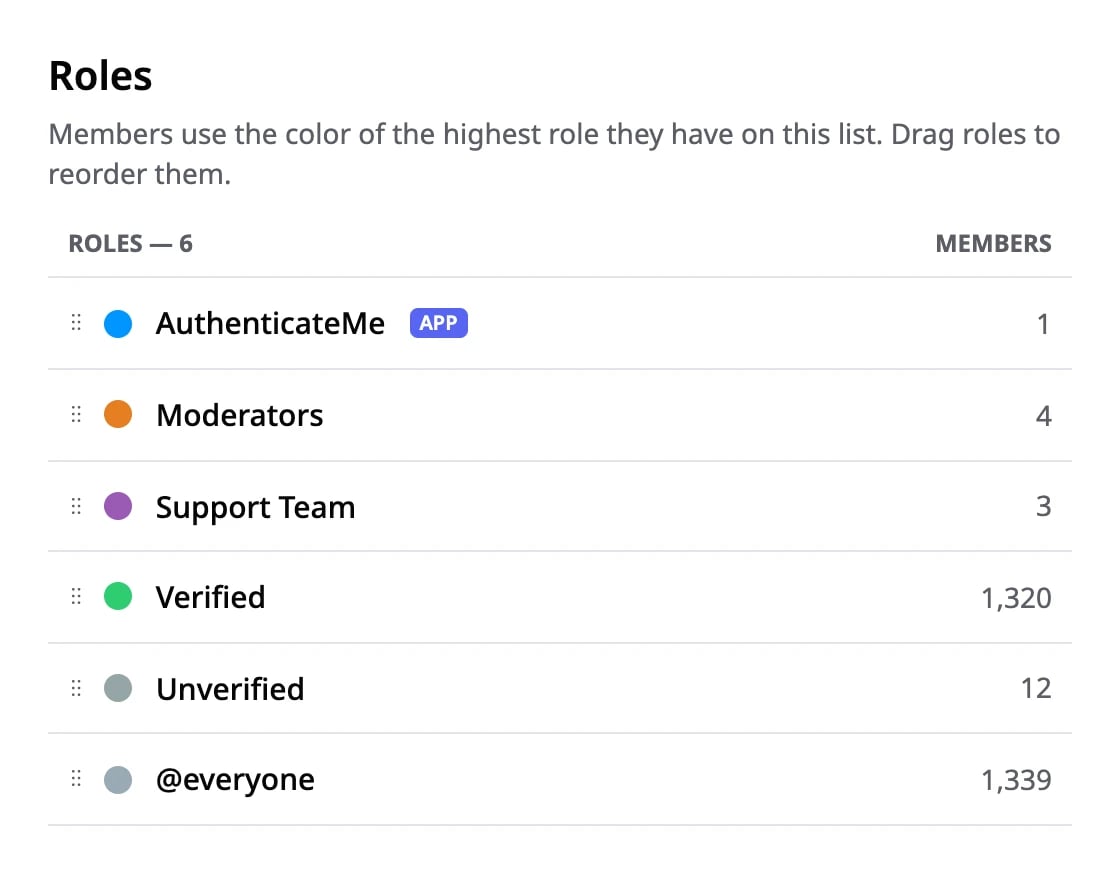
The AuthenticateMe role placed above the Verified and Unverified roles in Discord's role listThe AuthenticateMe role placed above the Verified and Unverified roles in Discord's role list
If the order is wrong, members see “AuthenticateMe’s role is too low to give you the role, let the server’s staff know” when they try to verify, and the Health page reports the problem.

Who can configure AuthenticateMe

By default, members with Manage Server can open the dashboard and run the setup commands, and members with Manage Roles can use the staff commands. Server owners and Administrators always have full access. You can change all of this on the Permissions page.